Documents
Upload and organize files like bylaws, reports, forms, newsletters, and contracts for your organization's website.
Overview
The Documents collection is a file library for your organization. Unlike other collections that create web pages, Documents create downloadable file entries — each with a title, description, category, and an uploaded file. Visitors to your website can browse and download these files.
Documents uses a flat layout (no tabs) — all fields are on a single page, making it the simplest collection to work with.
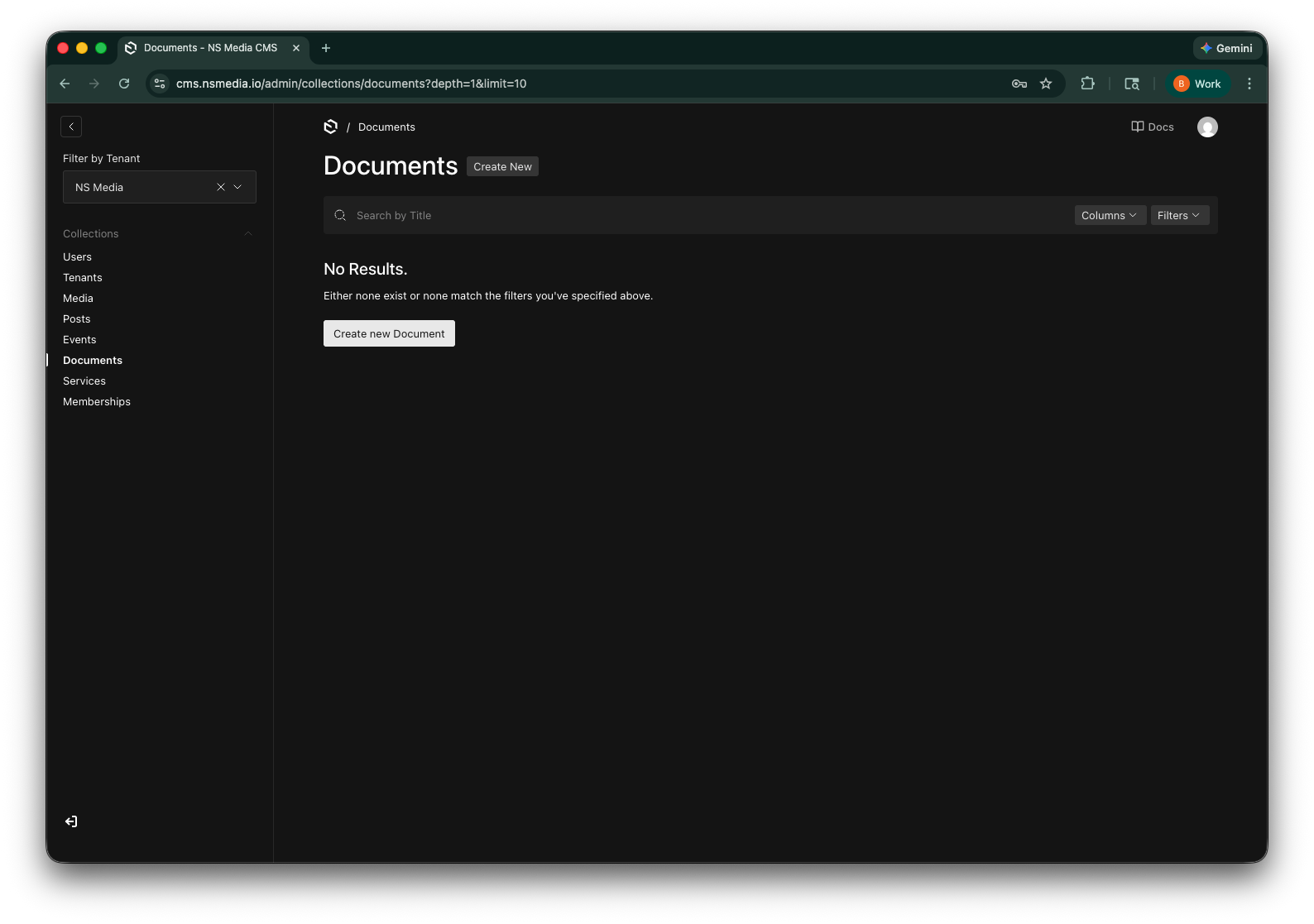 The Documents list view — all your files organized by title, category, and year
Core Fields
These are the primary fields you'll fill in for every document.
| Field | Required | Description | Example |
|---|---|---|---|
| Title | Yes | The name of the document. Displayed in listings and used to generate the slug. | 2026 Annual Report |
| Description | No | Brief description of what the document contains. Helps users decide if they need to download it. | Financial summary and highlights from the 2026 fiscal year. |
| File | Yes | The actual document file. Upload a PDF, Word doc, spreadsheet, or any other file type. This is what visitors will download. | (upload: annual-report-2026.pdf) |
| Category | Yes | The type of document. Choose from: Report, Policy, Procedure, Form, Guide, Manual, Presentation, Spreadsheet, Contract, Invoice, or Other. | Report |
| Year | Yes | The year the document was created or applies to. Defaults to the current year. Used for filtering and sorting. | 2026 |
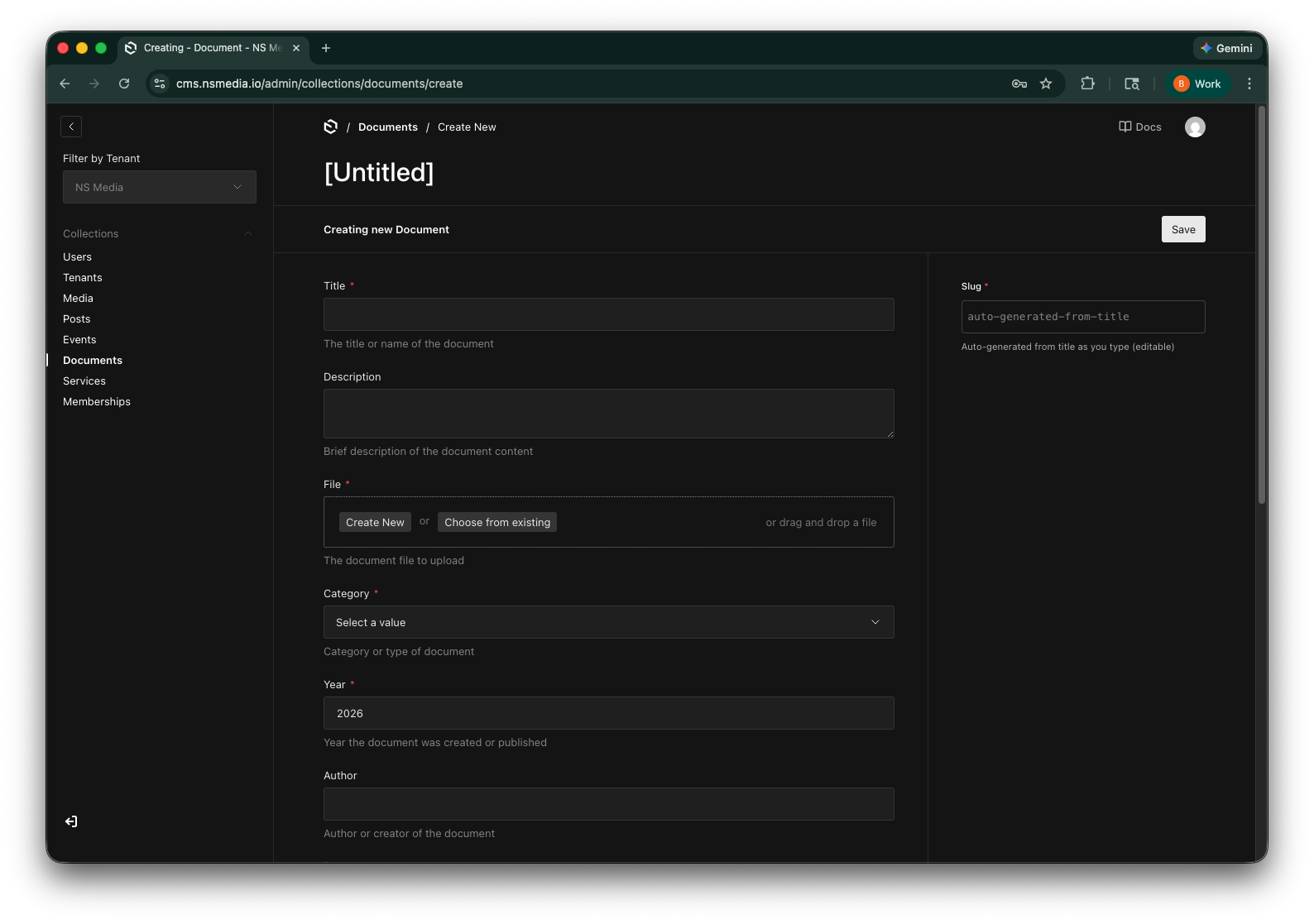 The core fields — title, description, file upload, category, and year
The File field is the only truly required upload in any collection. Click the upload area or drag and drop a file. Supported formats include PDF, Word (.docx), Excel (.xlsx), PowerPoint (.pptx), images, and more.
The Category dropdown has 11 options covering most document types. If none fit, use "Other." Categories help visitors filter documents on the website.
Metadata Fields
These optional fields provide additional context about the document.
| Field | Required | Description | Example |
|---|---|---|---|
| Author | No | Author or creator of the document. Auto-set to your email if left blank. | admin@nsmedia.io |
| Department | No | Department or division associated with the document. | Finance |
| Published Date | No | The date the document was officially published or approved. | 2026-01-15 |
| Expiration Date | No | When the document expires or needs review. Useful for policies and contracts that have renewal dates. | 2027-01-15 |
| Version | No | Document version number. Helpful for tracking revisions. | 2.1 |
| Tags | No | Tags for categorizing and filtering. Click "Add Tag" for each. | Annual, Finance, Board |
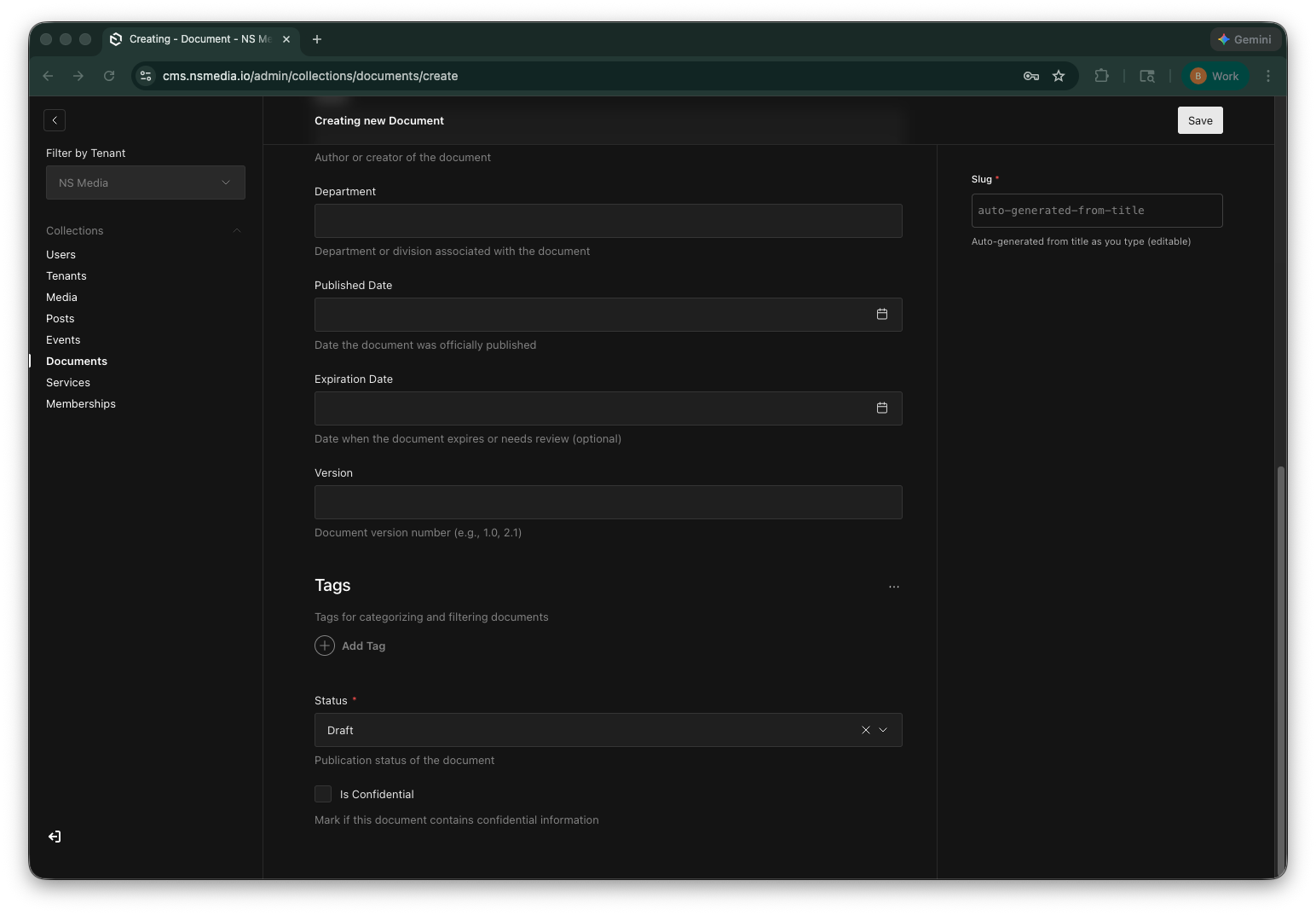 Metadata fields — author, department, dates, version tracking, and tags
Use the Expiration Date for documents that need periodic review, like policies, contracts, or insurance certificates. This makes it easy to filter for documents that need renewal.
Status & Confidentiality
| Field | Required | Description | Example |
|---|---|---|---|
| Status | Yes | Draft (hidden from website), Published (available for download), Archived (preserved but hidden), or Under Review (awaiting approval). | Published |
| Is Confidential | No | Mark this if the document contains sensitive or confidential information. This flag can be used by the website to restrict access or show a warning. | (unchecked) |
The Confidential flag is a metadata indicator — it does not automatically restrict access. If a document is truly sensitive, consider whether it should be uploaded to the CMS at all. Discuss access restrictions with your admin.
Sidebar Fields
| Field | Required | Description | Example |
|---|---|---|---|
| Slug | Yes | URL-friendly identifier. Auto-generated from the title. | 2026-annual-report |
Uploading Your First Document
- Go to Documents
Click "Documents" in the left sidebar.
- Click "Create New"
Opens a blank document form.
- Enter the title
Type a clear, descriptive title. The slug will auto-generate in the sidebar.
- Upload the file
Click the File upload area and select your document, or drag and drop it. This is the file visitors will download.
- Choose a category
Select the document type from the dropdown (Report, Policy, Form, etc.).
- Set the year
Verify the year is correct (defaults to the current year).
- Add metadata (optional)
Fill in the author, department, published date, and any tags as needed.
- Set status and save
Change the status to "Published" and click Save. The document will be available for download on your website after the next rebuild.
Frequently Asked Questions
What file types can I upload?
Any file type supported by the Media library — PDF, Word (.docx), Excel (.xlsx), PowerPoint (.pptx), images (JPG, PNG), and more. PDFs are the most common for documents shared on websites.
Is there a file size limit?
The CMS supports uploads up to 10 MB. For larger files, consider compressing them or hosting them externally and linking to them.
How do I update an existing document with a new version?
Open the document, upload the new file (it replaces the old one), update the Version field if you track versions, and click Save. The old file is replaced immediately.
What does "Under Review" status mean?
Under Review is for documents that have been submitted but not yet approved for publication. It's a workflow status — the document is hidden from the website until changed to Published.
Can visitors see confidential documents?
No. Documents marked Confidential are excluded from public (anonymous) API reads, even when their status is Published — only logged-in CMS users can see them. One caveat: the uploaded file itself lives in the Media library, which is public, so anyone who already has the file's direct URL can still download it. Avoid uploading truly sensitive files, or ask your admin about additional restrictions.
How are documents sorted on the website?
By default, documents are sorted by year (newest first) and then by title. Your website template may offer additional filtering by category or tags.