Getting Started
A quick introduction to logging in, navigating the admin panel, and understanding how your content is organized.
Logging In
Your admin panel lives at /admin on your CMS domain (e.g., cms.nsmedia.io/admin). Enter the email and password you were given when your account was created.
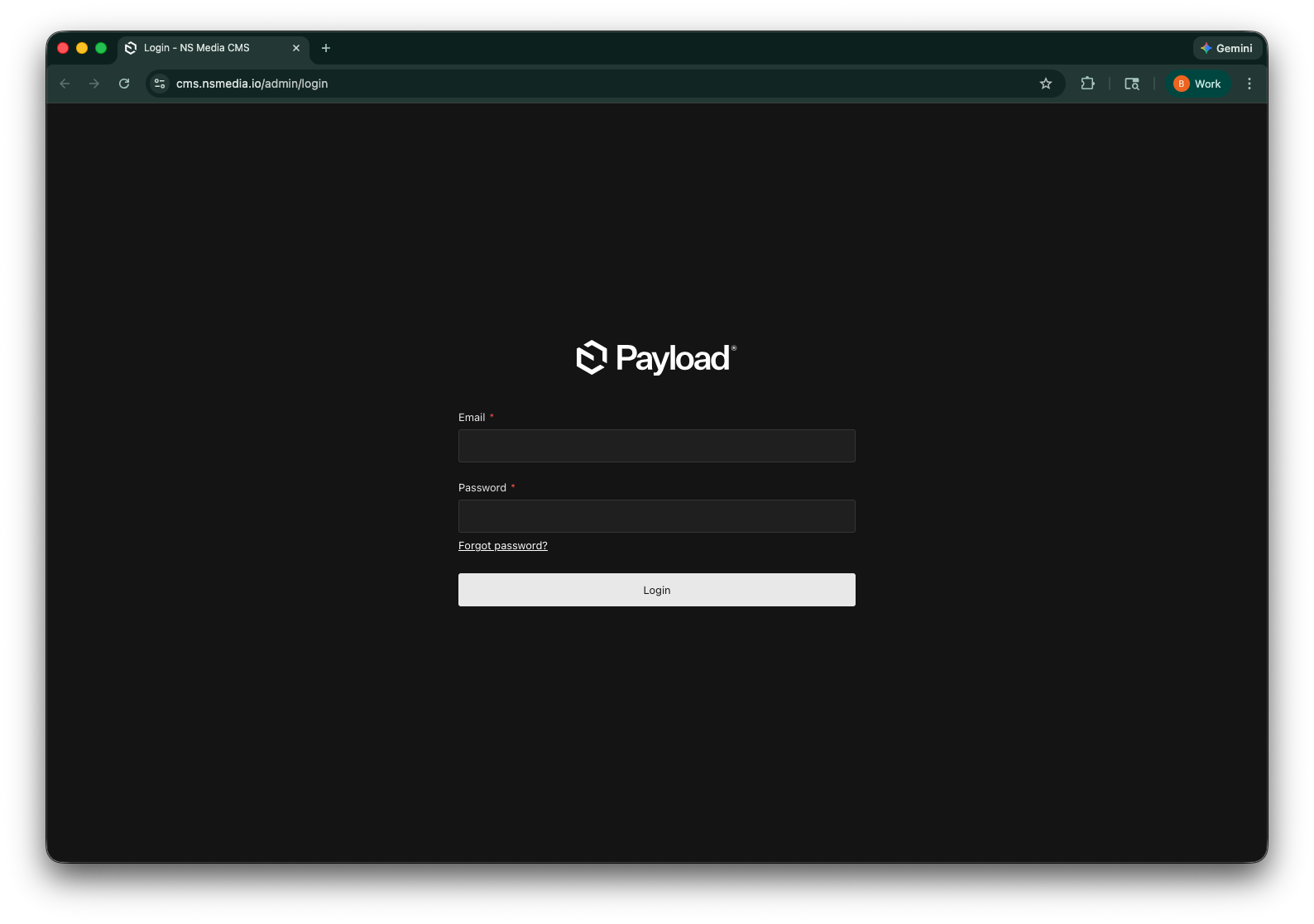 The admin login screen — enter your email and password to sign in
If you've forgotten your password, click the Forgot Password link on the login page. A reset link will be sent to your email.
The Dashboard
After logging in, you'll see the admin dashboard. The left sidebar lists all the collections (content types) available to your organization. Click any collection name to view and manage its content.
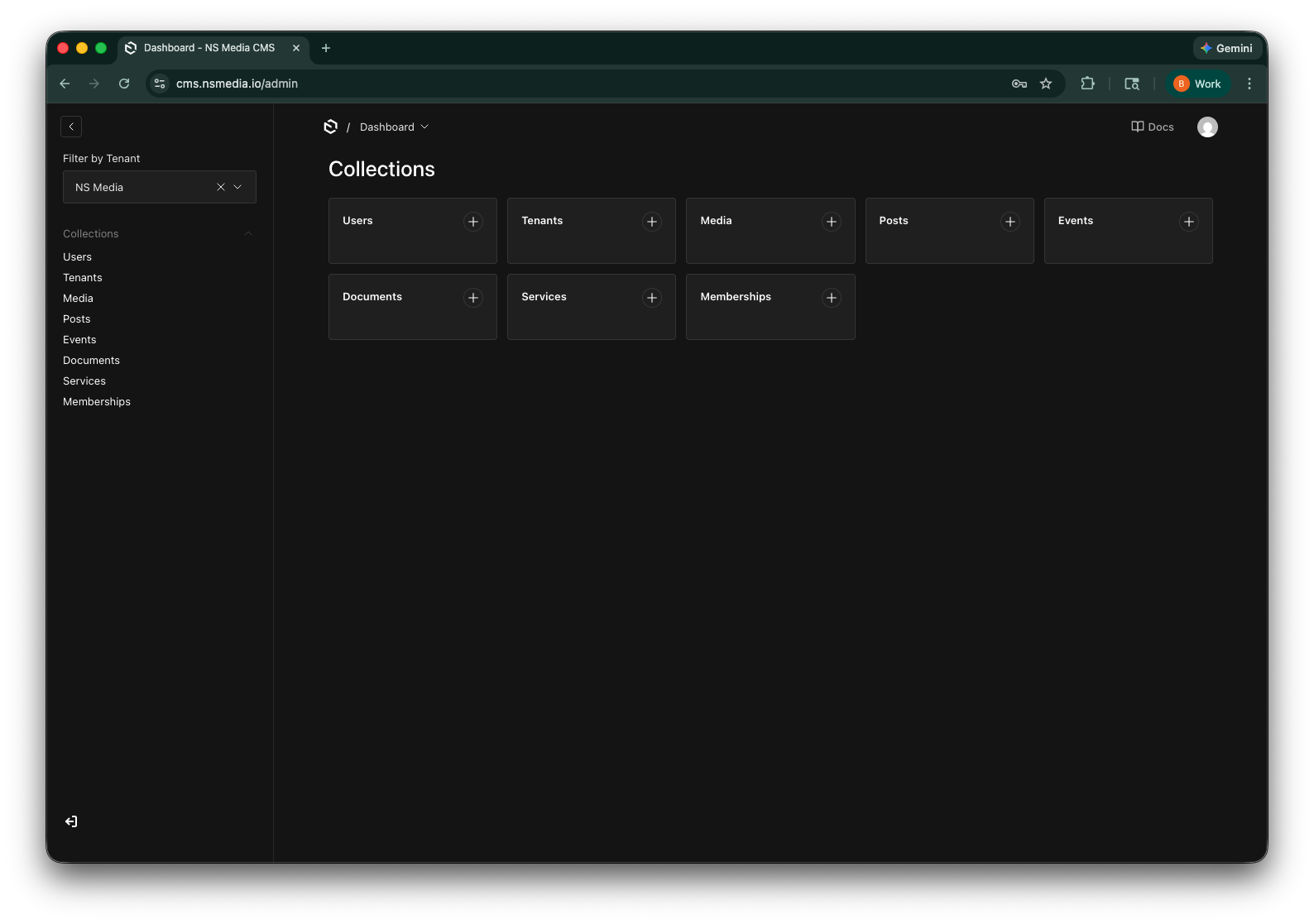 The dashboard — your sidebar shows the collections your organization has access to
Understanding Your Tenant
The NS Media CMS is multi-tenant — multiple organizations share the same system, but each can only see and manage their own content. When you log in, your account is linked to your organization (tenant).
You will only see content that belongs to your organization. You cannot accidentally edit another organization's data. If you manage multiple organizations, you can switch between them using the tenant selector at the top of the sidebar.
Collections Overview
Content in the CMS is organized into collections. Think of each collection as a type of content — like a folder for a specific kind of information. Depending on your organization's setup, you may see some or all of these:
- Memberships — Business listings displayed on your website
- Posts — Blog posts, announcements, and news articles
- Events — Upcoming events with dates, venues, and details
- Services — Services your organization offers
- Documents — Files like bylaws, forms, and newsletters
- Media — Images and files used across all your content
Creating Content
The workflow for creating content is the same across all collections:
- Navigate to the collection
Click the collection name in the left sidebar (e.g., "Memberships").
- Click "Create New"
The button at the top-right of the list view opens a blank editor form.
- Fill in the fields
Work through each tab, filling in the required fields (marked with a red asterisk) and any optional fields you need.
- Click "Save"
Once you're happy with the content, click Save in the top-right corner. Your changes are live immediately.
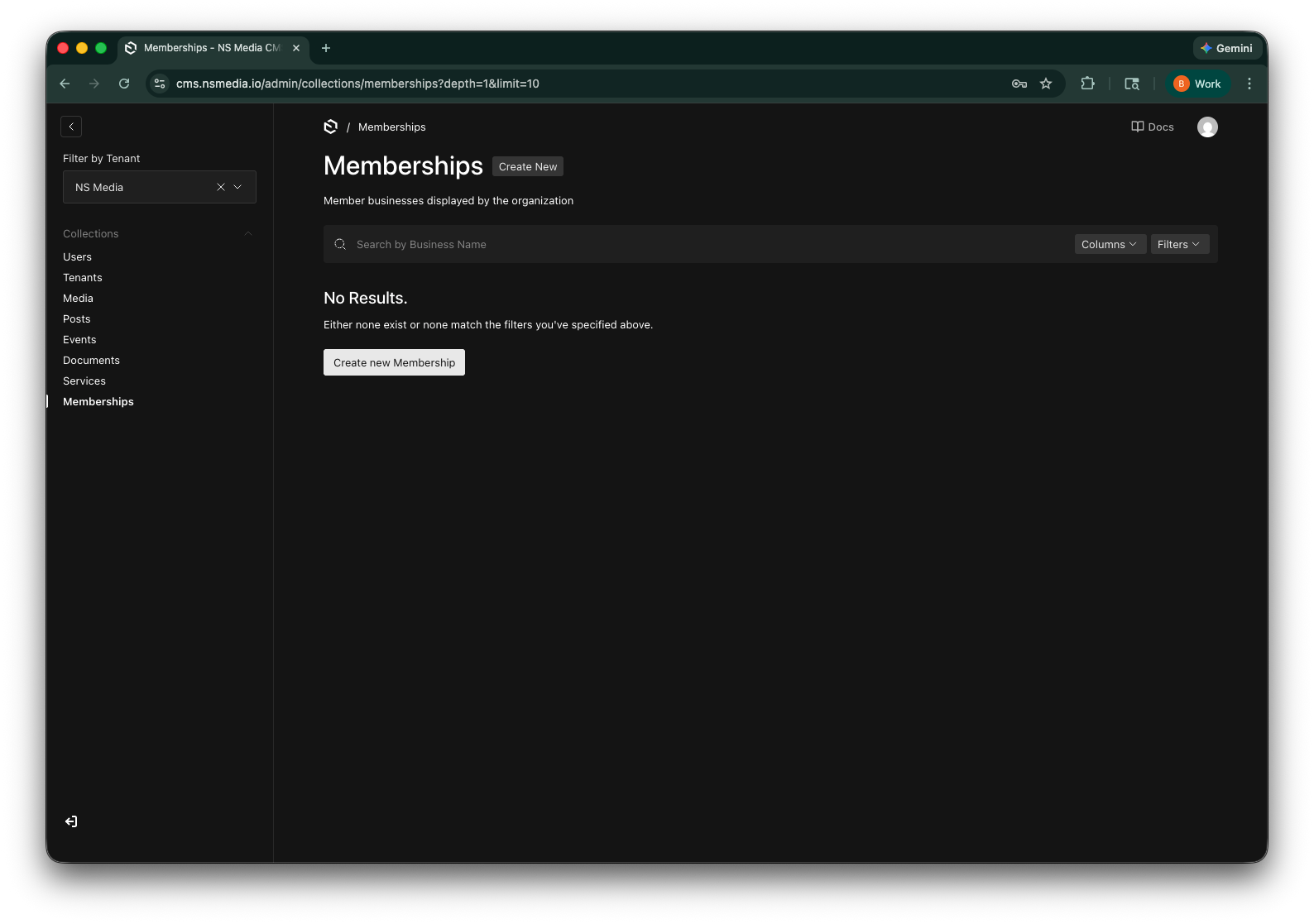 Click 'Create New' to start adding content to any collection
How Slugs Work
Most collections have a slug field in the sidebar. A slug is a URL-friendly version of the title — it's used to create clean URLs on your website.
Slugs are auto-generated as you type the title or name. For example, typing "Centerburg Hardware & Supply" will automatically create the slug centerburg-hardware-supply.
You can edit the slug manually if needed, but it's usually best to let it generate automatically. Changing a slug after content is published may break existing links on your website.
Image Uploads
When a field asks for an image (like a cover image or logo), you can either upload a new file or select an existing one from your media library. Images are automatically optimized and served through a CDN for fast loading.
- Supported formats: JPG, PNG, GIF, SVG, WebP
- Recommended sizes: Check each field's description for specific size recommendations (e.g., "1600x900 for cover photos")
- Images are automatically converted to web-friendly formats
Address Autocomplete
Some collections (like Memberships and Events) include an address field powered by Google Maps. Start typing an address and select from the suggestions — the city, state, zip code, and map coordinates will fill in automatically.
The autocomplete searches for real addresses using Google Maps. If your address doesn't appear in suggestions, try typing more of the street address or include the city name.
Saving and Website Updates
When you save content in the CMS, a webhook automatically triggers your website to rebuild with the latest data. This typically takes 1-2 minutes. You don't need to do anything extra — just save and your changes will appear on your live site shortly.
If changes don't appear on your site after a few minutes, try a hard refresh in your browser (Ctrl+Shift+R on Windows, Cmd+Shift+R on Mac) to clear your browser cache.
Next Steps
Now that you know the basics, dive into a specific collection guide to learn about every field and workflow: