Posts
Write and publish blog posts, announcements, news articles, and What's New release notes for your organization's website.
Overview
The Posts collection is where you create written content for your website — blog articles, organization announcements, and news updates. Each post has a rich text editor for the body, an author, categories, tags, and SEO settings.
Posts have four categories: Blog Post, Announcement, News, and What's New. The category determines how the post is displayed and grouped on your website.
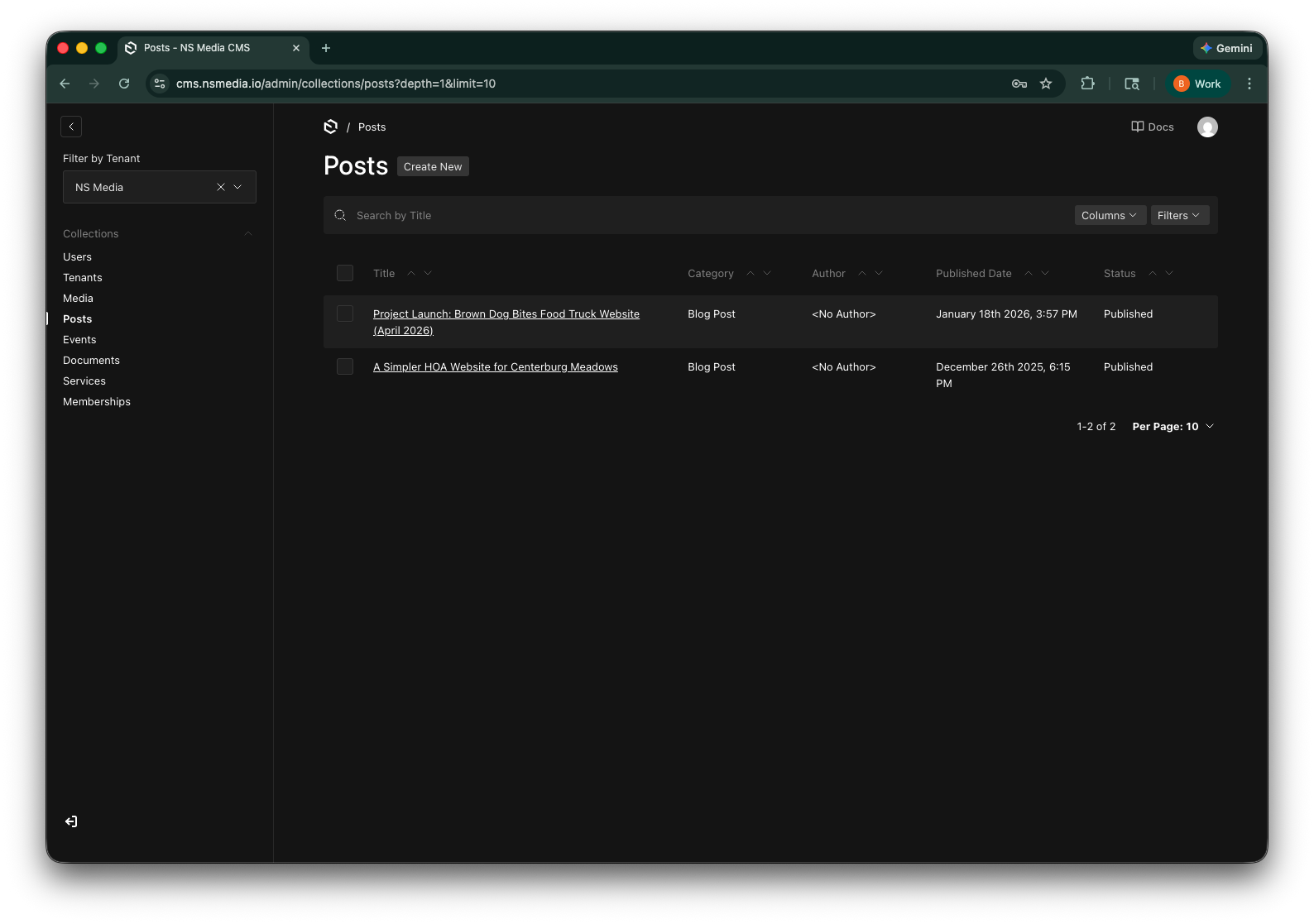 The Posts list view — see all your posts with their category, author, and status
Content Tab
The Content tab is where you write the post itself. Enter a compelling title, an optional excerpt for previews, and the full body content.
| Field | Required | Description | Example |
|---|---|---|---|
| Title | Yes | The headline of your blog post. Displayed prominently on the website and used to generate the slug. | Community Clean-Up Day Recap |
| Excerpt | No | A short summary of the post. Used for preview cards and SEO meta descriptions. Keep it to 1-2 sentences. | Volunteers gathered to clean up downtown Centerburg last Saturday. |
| Content | Yes | The full body of your post. Uses the rich text editor with support for headings, bold, italic, links, lists, and images. | (rich text editor) |
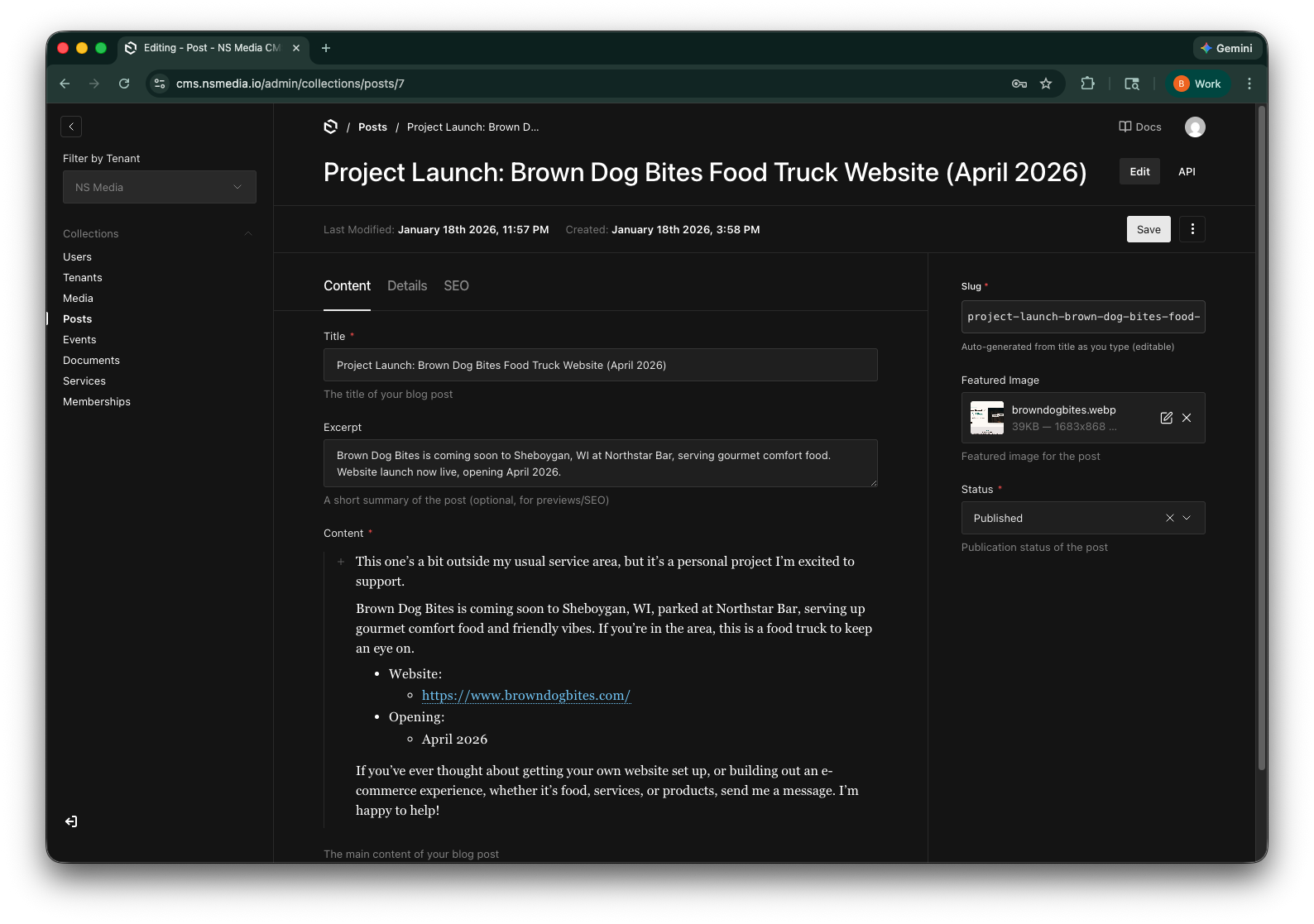 The Content tab — title, excerpt, and the rich text editor for your post body
The content editor supports headings (H1–H6), bold, italic, underline, strikethrough, links, ordered and unordered lists, and block quotes. Use the toolbar at the top of the editor to format your content.
Details Tab
The Details tab contains metadata about the post — who wrote it, what type it is, when it was published, and how to categorize it.
| Field | Required | Description | Example |
|---|---|---|---|
| Author | Yes | The post author. Automatically set to the current user when creating a new post. You can change it to any user. | admin@nsmedia.io |
| Category | Yes | The type of post. Choose from Blog Post, Announcement, News, or What's New. Determines how the post is displayed and categorized on the website. | Blog Post |
| Published Date | Yes | The date and time the post was published. Defaults to now. You can set a future date for scheduling. | 2026-02-20 9:00 AM |
| Read Time | Yes | Estimated reading time in minutes. Displayed on the post card and detail page. Defaults to 5 minutes. | 3 |
| Tags | No | Add tags for filtering and categorizing. Click "Add Tag" to create a new entry. Tags display as pills on the website. | Community, Volunteer |
| CTA Text | No | Custom call-to-action button text on the post card. Defaults to "Read More". Max 50 characters. | Read Full Story |
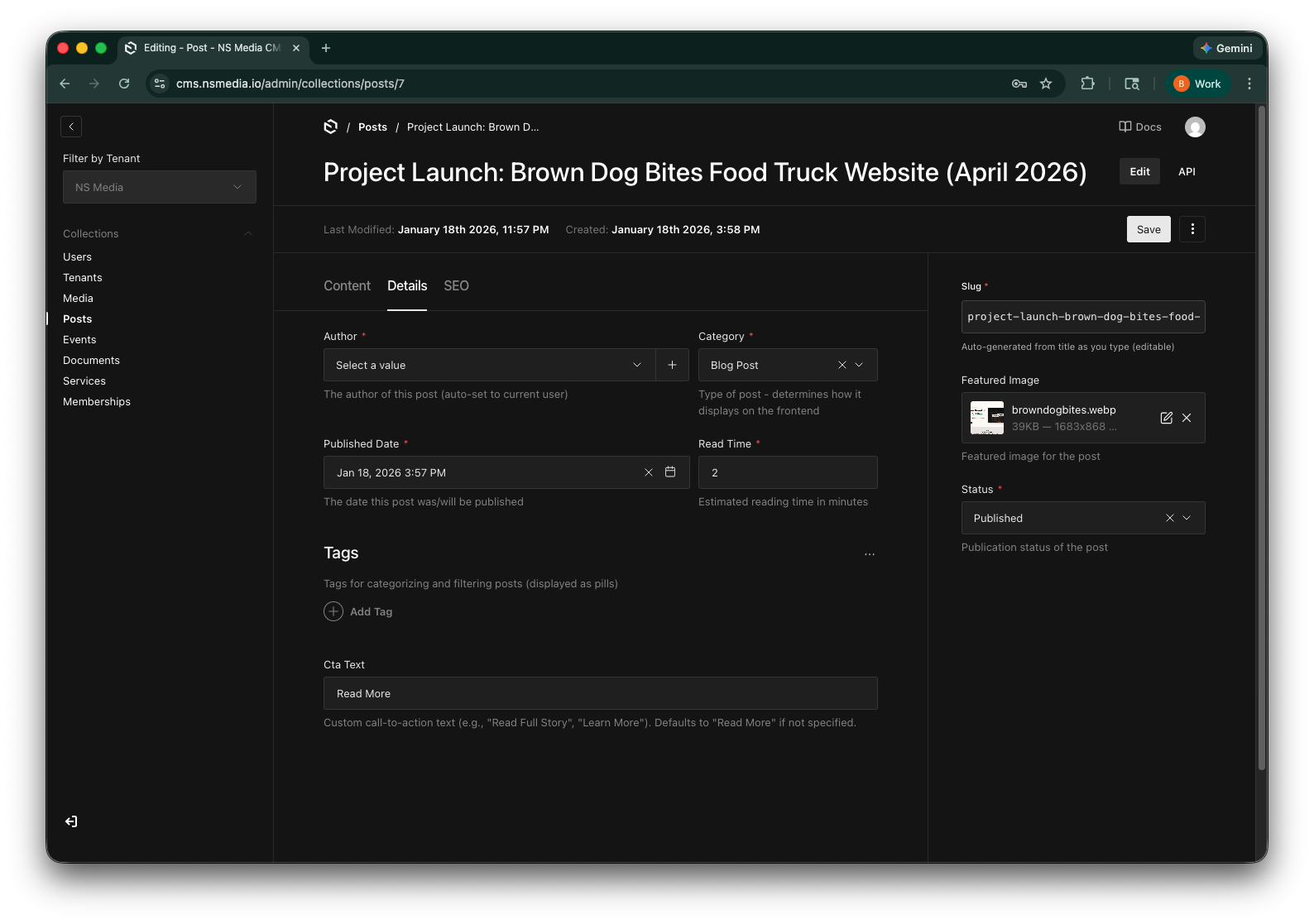 The Details tab — author, category, dates, tags, and call-to-action settings
The Author field is automatically set to your account when you create a new post. You only need to change it if someone else should be credited.
Tags are great for cross-categorization. For example, a blog post about a community event could have tags like "Community" and "Events" to help visitors find related content.
SEO Tab
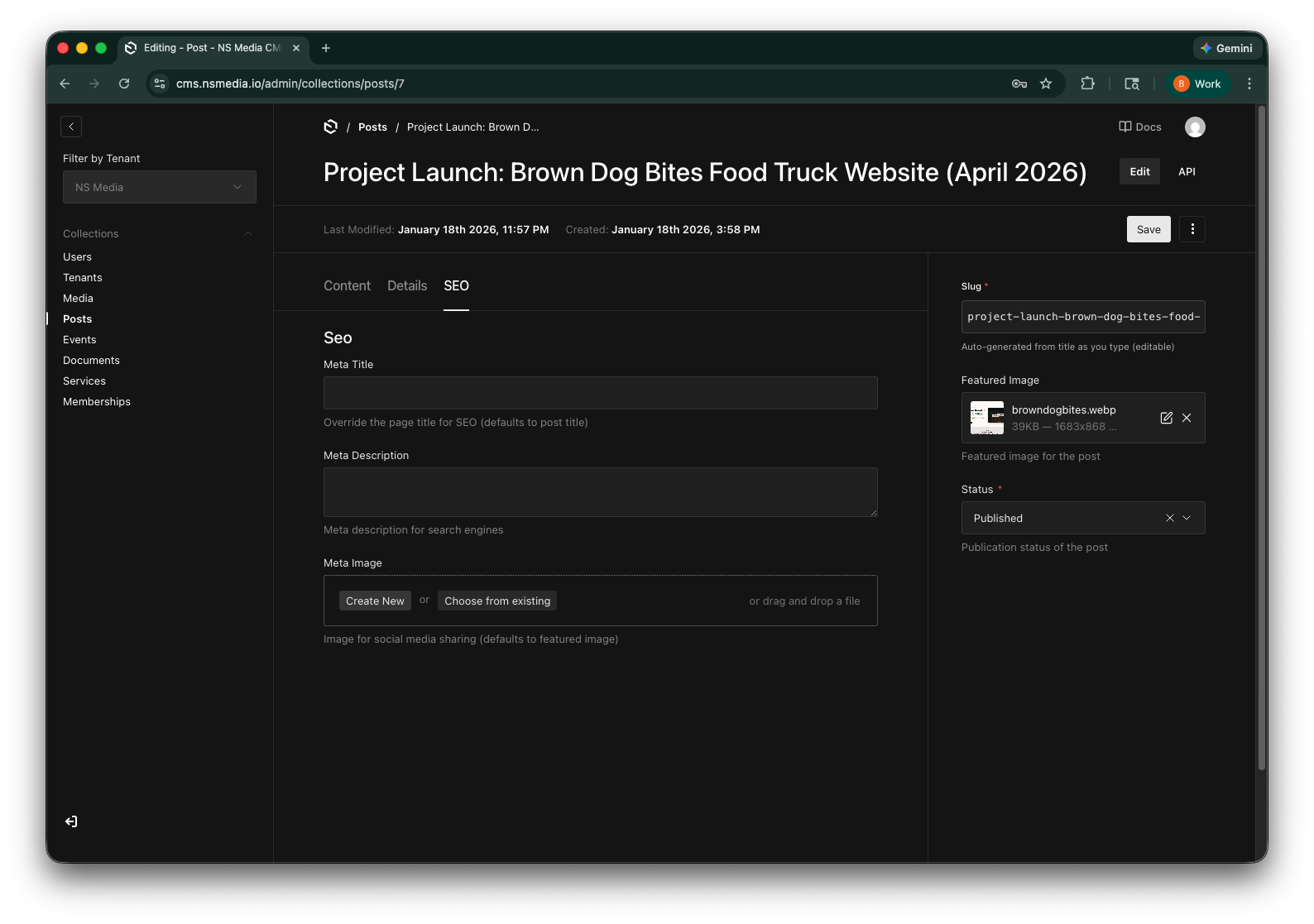
The SEO tab lets you optimize how the post appears in search results and social media shares. All fields are optional — sensible defaults are used if left blank.
| Field | Required | Description | Example |
|---|---|---|---|
| Meta Title | No | Override the page title used in browser tabs and search results. If blank, the post title is used. | Community Clean-Up Day | Centerburg Meadows |
| Meta Description | No | The description shown in search engine results. If blank, the excerpt is used. Keep under 160 characters. | See highlights from the annual community clean-up day in Centerburg. |
| Meta Image | No | The image shown when the post is shared on social media (Facebook, Twitter, etc.). Defaults to the featured image. | (upload: social-share.jpg) |
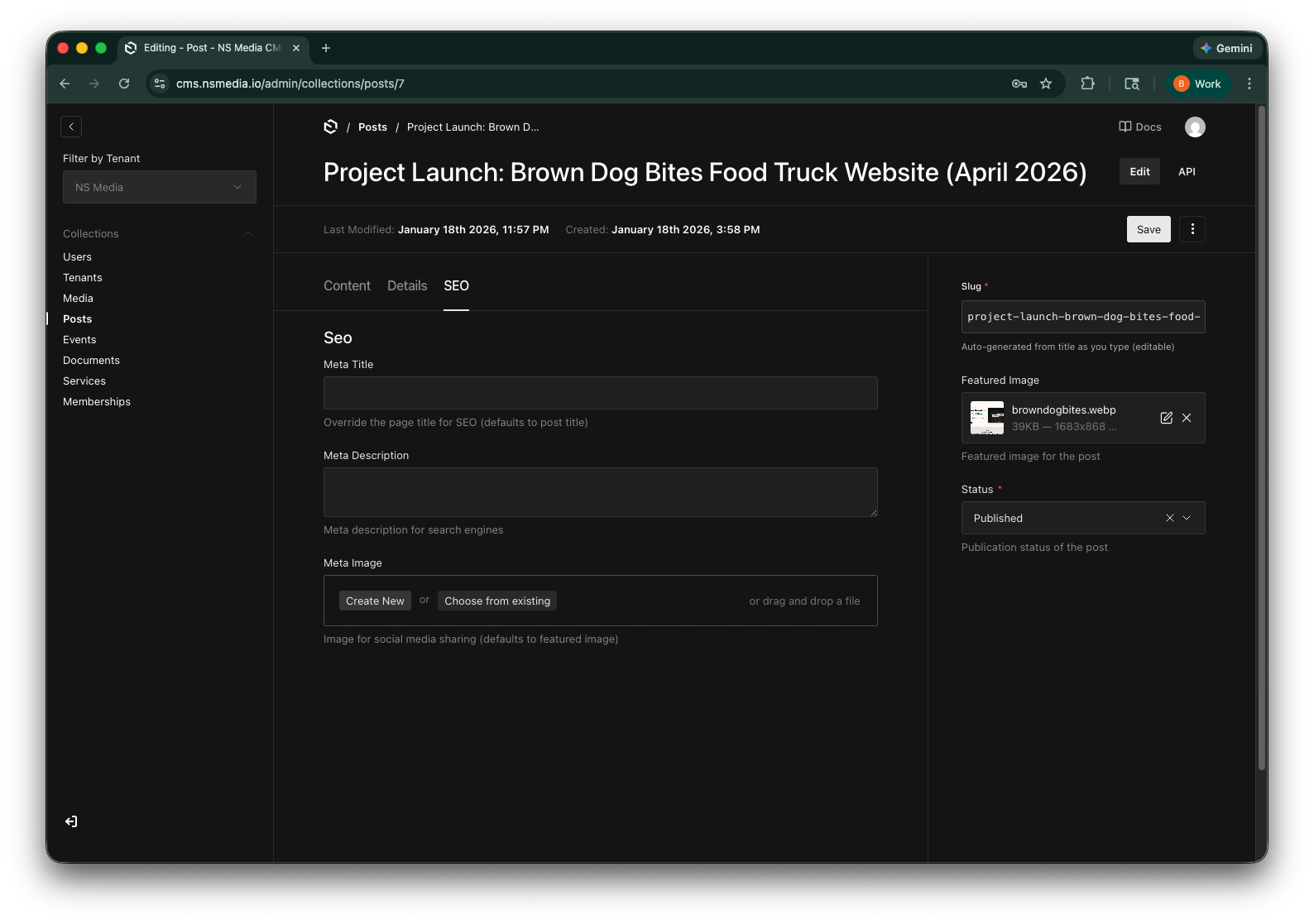 The SEO tab — customize how your post appears in search engines and social media
For best SEO results, write a unique meta description for each post. Keep it under 160 characters and include relevant keywords. If you leave it blank, the excerpt will be used instead.
Sidebar Fields
These fields appear in the right sidebar of the editor, outside the main tabs.
| Field | Required | Description | Example |
|---|---|---|---|
| Slug | Yes | URL-friendly identifier. Auto-generated from the title as you type. Used in the website URL (e.g., /posts/community-clean-up-day-recap). | community-clean-up-day-recap |
| Featured Image | No | The main image for the post. Shown at the top of the post and on preview cards. | (upload: cleanup-day-hero.jpg) |
| Related Service | No | Optional. Link this post to the service it is about. A "Related Service" card appears at the end of the post linking to that service page, which also strengthens that page in search. Pick the service a reader of this post would be looking for. | Ant Control |
| Status | Yes | Controls visibility. Draft posts are not visible on the website. Published posts are live. Archived posts are hidden but preserved. | Published |
 The sidebar — slug, featured image upload, and publication status
Changing the Status to "Draft" will immediately hide the post from the website. Use "Archived" to preserve old posts that are no longer relevant.
Creating Your First Post
- Go to Posts
Click "Posts" in the left sidebar of the admin panel.
- Click "Create New"
The button at the top-right opens a blank post form.
- Write your post
On the Content tab, enter a title and write your post using the rich text editor. Add an excerpt if you want a custom preview summary.
- Set the details
Switch to the Details tab. Choose a category (Blog Post, Announcement, News, or What's New), verify the published date, and adjust the read time if needed.
- Upload a featured image
In the sidebar, upload a featured image. This will be the hero image at the top of your post and the thumbnail on listing pages.
- Set status to Published
In the sidebar, change the status from "Draft" to "Published" when you're ready for the post to go live.
- Save
Click Save. Your post will appear on the website after the next rebuild (usually 1-2 minutes).
Frequently Asked Questions
What's the difference between Blog Post, Announcement, News, and What's New?
These categories control how posts are grouped on your website. Blog Posts are regular articles. Announcements are typically short, time-sensitive updates. News articles cover organizational or industry news. What's New posts are product release notes and updates, surfaced as a "What's New" feed. Your website template determines exactly how each category is displayed.
Can I schedule a post for the future?
You can set a future published date, but the post will still be visible if the status is set to "Published." For true scheduling, keep the status as "Draft" and change it to "Published" when you're ready.
How do I add images inside the post body?
In the rich text editor, use the image upload button in the toolbar. You can upload a new image or select one from your media library. Images will be automatically optimized.
Do I need to fill in the SEO tab?
It's optional but recommended for important posts. The system uses sensible defaults (post title as meta title, excerpt as meta description, featured image as social image) if you leave the SEO fields blank.
How do tags work?
Tags are free-form text labels. Add as many as you like by clicking "Add Tag." They appear as clickable pills on the website and help visitors filter and find related content.
Can I edit a published post?
Yes. Open the post, make your changes, and click Save. The website will rebuild automatically with the updated content.