Services
Create structured service pages for your organization with SEO-optimized content, process breakdowns, FAQs, and call-to-action sections.
Overview
The Services collection is designed for organizations that offer specific services (e.g., pest control, plumbing, consulting). Each service page has a structured layout with predefined sections — overview, symptoms/signs, process steps, benefits, FAQs, and a call-to-action — making it easy to create professional, SEO-friendly service pages without any design skills.
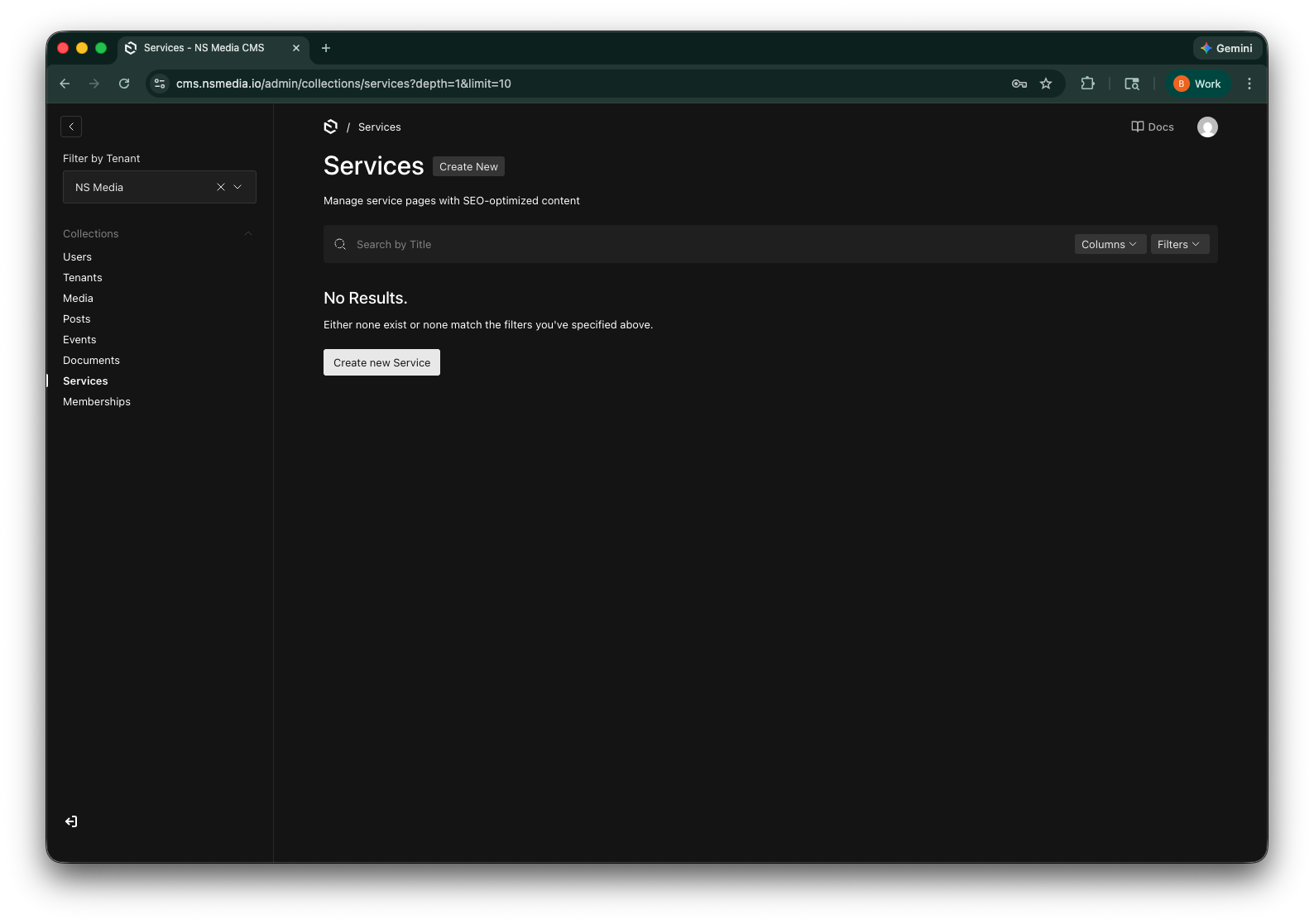 The Services list view — manage all your service pages from one place
Basics Tab
The Basics tab contains the core information: the service title, category, a short description, a hero image, and hero call-to-action buttons.
| Field | Required | Description | Example |
|---|---|---|---|
| Title | Yes | The main title of the service page. Displayed as the page heading and used to generate the slug. | Professional Carpenter Ant Control |
| Category | Yes | A text label for the service category. Used for grouping and filtering on the website. | Pest Control |
| Description | Yes | Short description for preview cards and SEO. Max 300 characters. This is the first thing visitors see. | Fast, effective carpenter ant treatment for homes and businesses. |
| Hero Image | No | The main banner image at the top of the service page. | (upload: ant-control-hero.jpg) |
| Hero CTAs | No | Up to 2 call-to-action buttons in the hero section. The first is typically a link button, the second is a phone number button. | Contact Us → /contact |
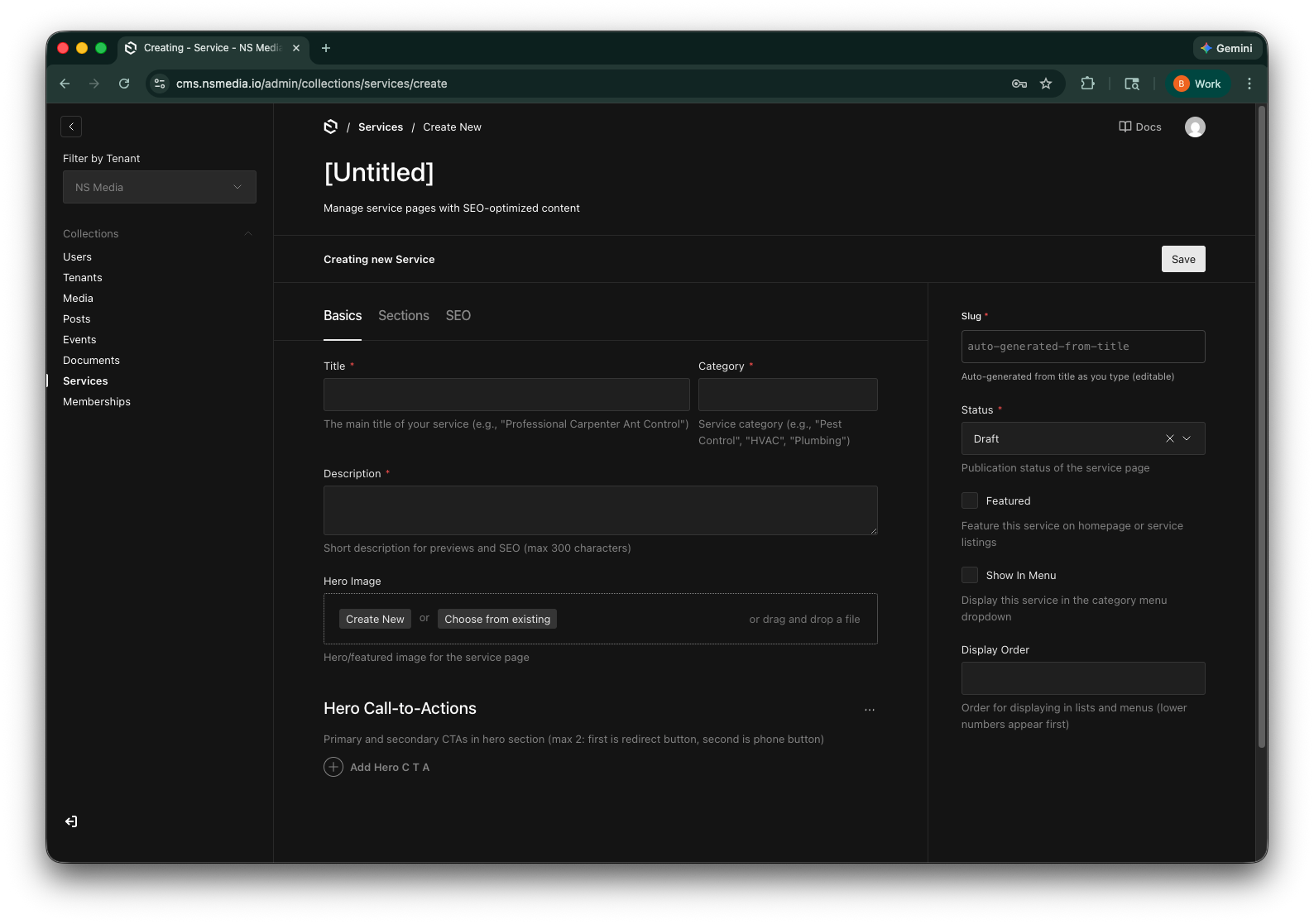 The Basics tab — title, category, description, hero image, and call-to-action buttons
You can add up to 2 hero buttons. A common pattern is: first button links to a contact page (/contact), second button is a phone number (tel:5551234567). The first button is styled as the primary action.
Sections Tab
The Sections tab is the most detailed — it contains all the structured content sections that make up the service page. Each section is optional; fill in the ones that make sense for your service.
Service Overview
The main content section explaining why this service matters.
| Field | Required | Description | Example |
|---|---|---|---|
| Title | No | Optional custom title for the overview section. Leave blank to use the default. | Understanding Carpenter Ants |
| Content | Yes | Rich text content explaining why this service is important. Use the editor for formatting, links, and images. | (rich text editor) |
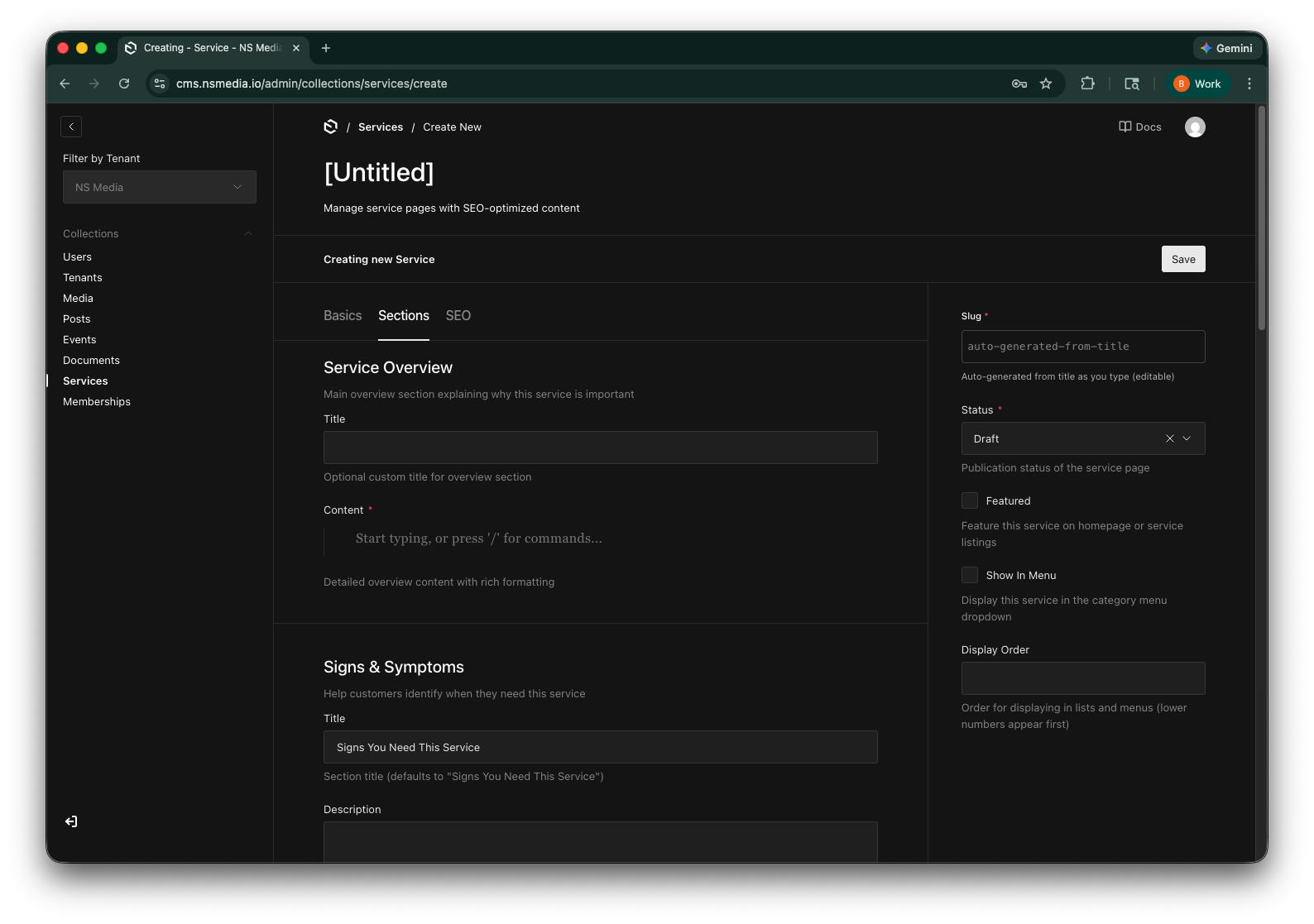 Service Overview — the primary content section with rich text formatting
Signs & Symptoms
Help customers identify when they need this service. Great for SEO — people often search for symptoms before they know what service they need.
| Field | Required | Description | Example |
|---|---|---|---|
| Title | No | Section heading. Defaults to "Signs You Need This Service" if left blank. | Signs of Carpenter Ant Infestation |
| Description | No | Optional introductory text before the list of signs/symptoms. | Watch for these common indicators... |
| Items | No | List of symptoms or signs. Click "Add Item" for each one. Displayed as a checklist on the website. | Sawdust piles near wooden structures |
Service Process
A step-by-step breakdown of how you deliver the service. Builds trust and sets customer expectations.
| Field | Required | Description | Example |
|---|---|---|---|
| Title | No | Section heading. Defaults to "Our Process" if left blank. | Our Treatment Process |
| Description | No | Optional introductory text before the process steps. | We follow a proven 4-step process... |
| Steps | No | Ordered list of process steps. Each step has a title and description. Displayed as a numbered timeline. | Step 1: Inspection and Assessment |
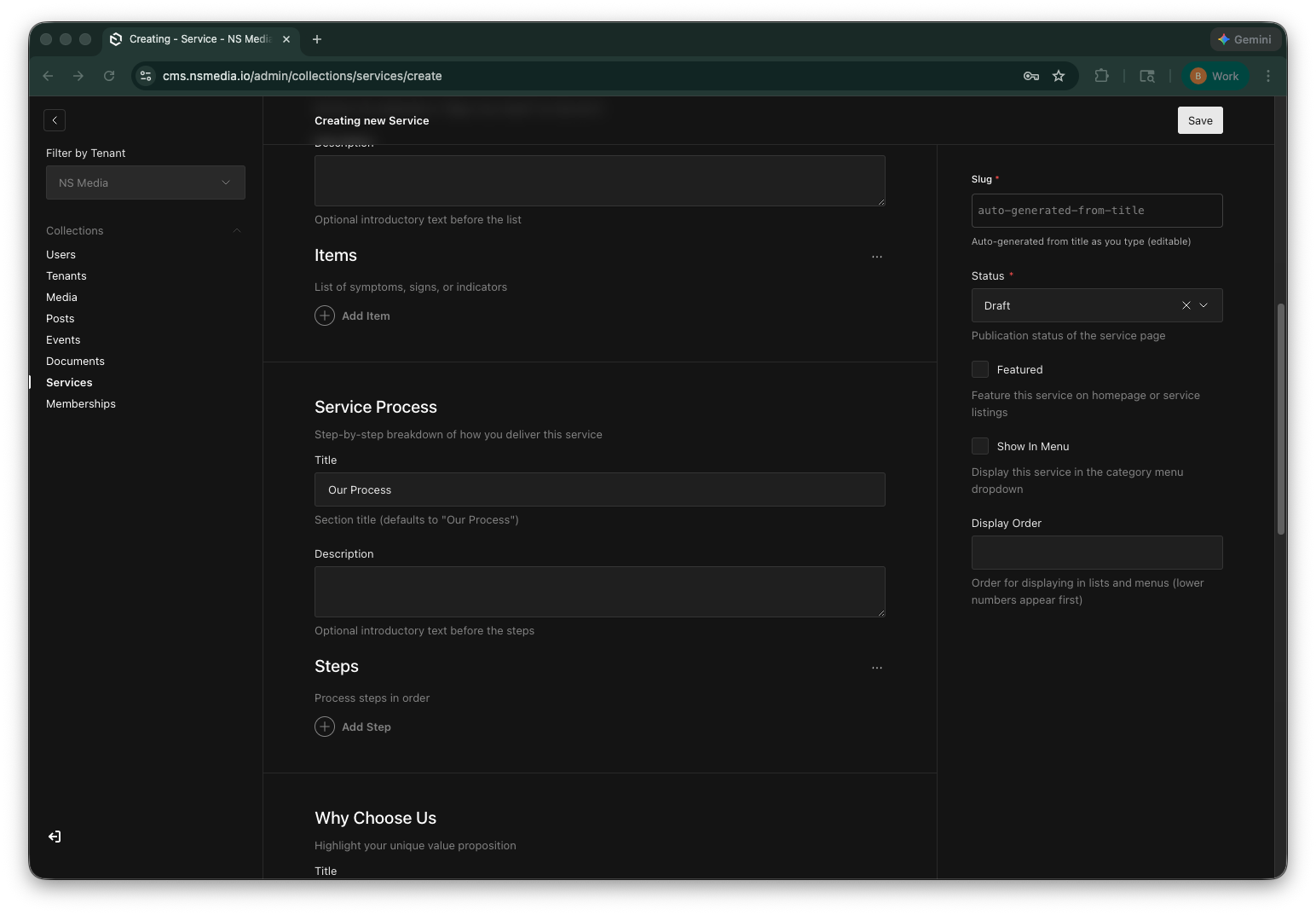 Service Process — add steps with titles and descriptions, displayed as a numbered timeline
Why Choose Us (Benefits)
Highlight your unique value proposition with a list of benefits or differentiators.
| Field | Required | Description | Example |
|---|---|---|---|
| Title | No | Section heading. Defaults to "Why Choose Us" if left blank. | Why Choose Our Pest Control |
| Points | No | List of benefits or differentiators. Click "Add Point" for each one. | Licensed and insured technicians |
Additional Content
A free-form rich text field for any extra information that doesn't fit the structured sections above.
FAQs
Frequently asked questions about this service. FAQs are great for SEO and can appear as rich snippets in Google search results.
| Field | Required | Description | Example |
|---|---|---|---|
| Question | Yes | The FAQ question. Keep it natural — write it as a customer would ask it. | How long does carpenter ant treatment take? |
| Answer | Yes | The FAQ answer. Be clear and concise. | Most treatments are completed in a single visit lasting 1-2 hours. |
Write FAQ questions in a natural, conversational tone — the way a customer would actually ask. Search engines favor this format for featured snippets.
Call to Action
Customize the CTA section that appears at the bottom of the service page.
| Field | Required | Description | Example |
|---|---|---|---|
| Title | No | CTA section heading. Defaults to "Ready to Get Started?". | Protect Your Home Today |
| Description | No | Optional text below the CTA heading. | Schedule a free inspection with our expert team. |
| Button Text | No | CTA button label. Defaults to "Contact Us". | Schedule Inspection |
| Button URL | No | Where the button links. Leave blank to use the default contact page. | /contact |
Related Services
Link to up to 4 other service pages. These appear as cards at the bottom of the page, encouraging visitors to explore more of your services.
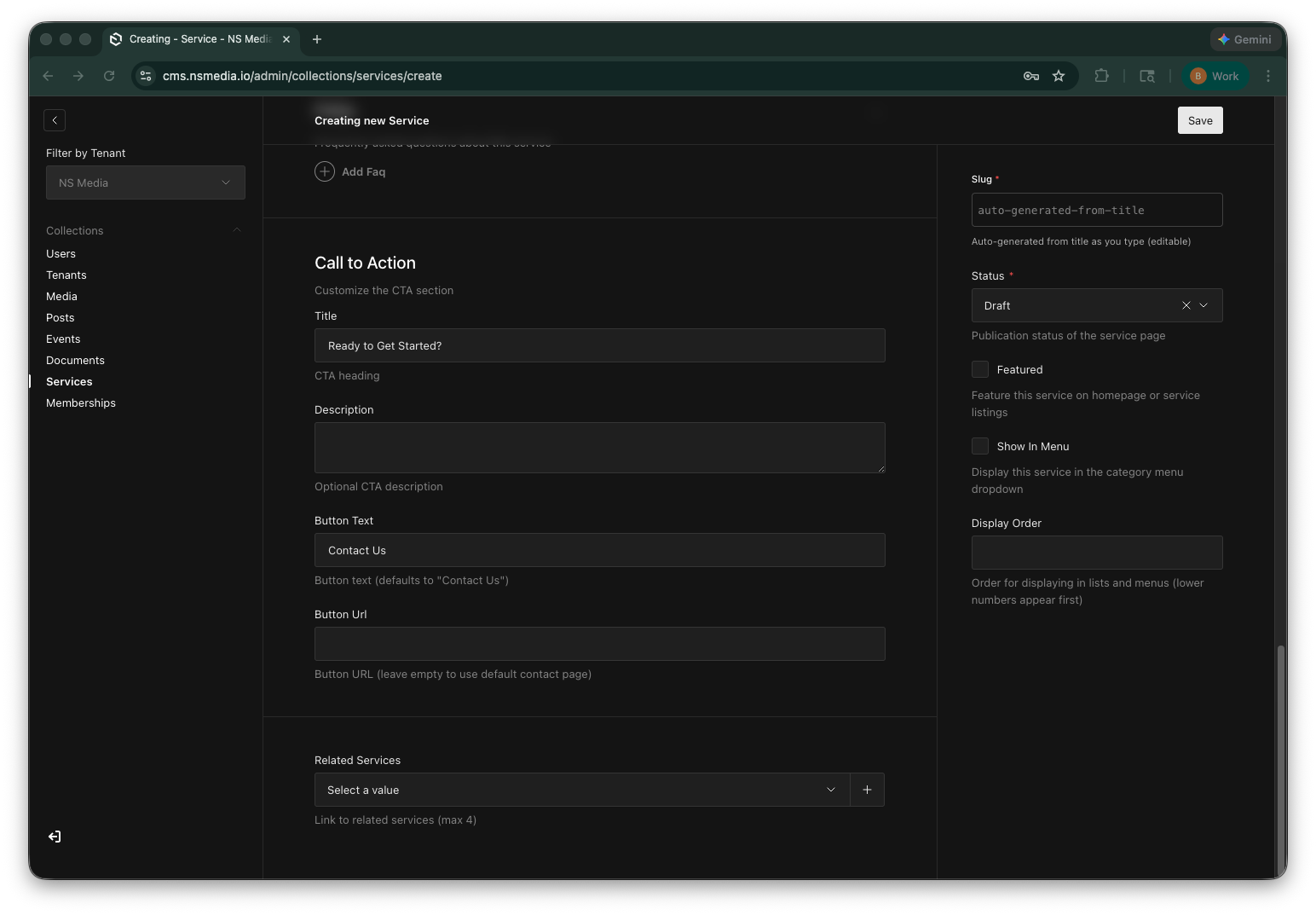 Related Services — link up to 4 other services for cross-promotion
SEO Tab
The SEO tab gives you full control over search engine optimization and structured data for rich search results.
SEO Settings
| Field | Required | Description | Example |
|---|---|---|---|
| Meta Title | No | Override the page title for search engines. Defaults to the service title. | Carpenter Ant Control | Centerburg Pest Services |
| Meta Description | No | Search engine description. Max 160 characters. Defaults to the description field. | Professional carpenter ant treatment in Centerburg, OH. |
| Meta Image | No | Social media sharing image. Defaults to the hero image. | (upload: social-share.jpg) |
| Keywords | No | SEO keywords. Click "Add Keyword" for each one. | carpenter ants, pest control, Centerburg |
| Canonical URL | No | If this content exists elsewhere, enter the canonical URL to avoid duplicate content penalties. | https://example.com/services/ant-control |
Structured Data (Schema.org)
These fields generate Schema.org markup, which helps search engines understand your service and can produce rich results (star ratings, price ranges, service areas).
| Field | Required | Description | Example |
|---|---|---|---|
| Service Type | No | Schema.org service type for rich search results (e.g., "PestControlService"). | PestControlService |
| Area Served | No | Geographic areas where this service is offered. Click "Add Area" for each. | Centerburg, OH |
| Price Range | No | General price range indicator. | $$ |
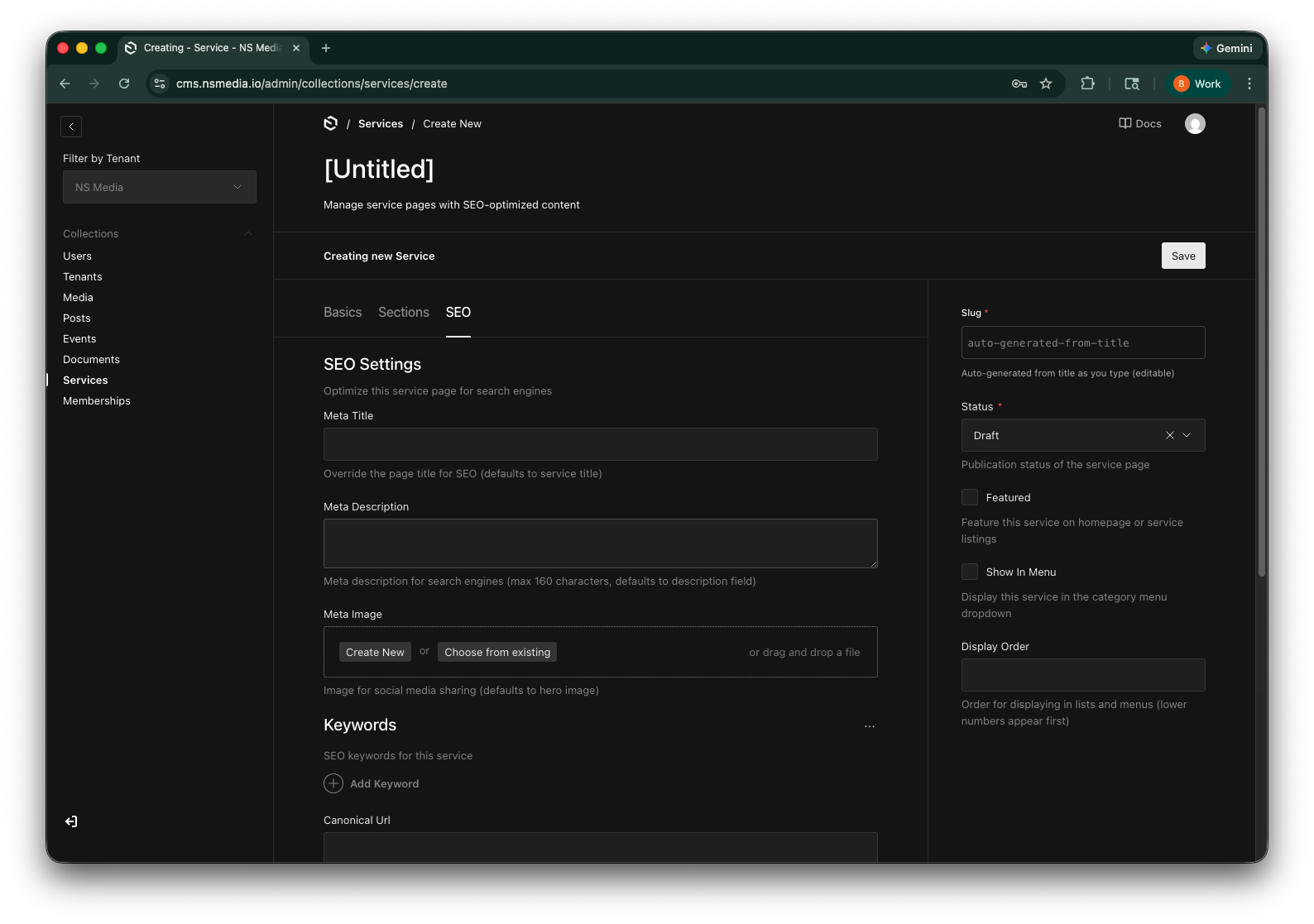 The SEO tab — meta tags, keywords, and Schema.org structured data
If you're not sure about the Schema.org fields, leave them blank. The SEO Settings (meta title, description, image) are the most impactful fields to fill in.
Sidebar Fields
| Field | Required | Description | Example |
|---|---|---|---|
| Slug | Yes | URL-friendly identifier. Auto-generated from the title. | professional-carpenter-ant-control |
| Status | Yes | Draft (hidden), Published (live), or Archived (preserved but hidden). | Published |
| Featured | No | Check to feature this service prominently on the homepage or service listings. | (checked) |
| Show in Menu | No | Check to include this service in the website's navigation menu dropdown. | (checked) |
| Display Order | No | Controls the position in lists and menus. Lower numbers appear first. | 10 |
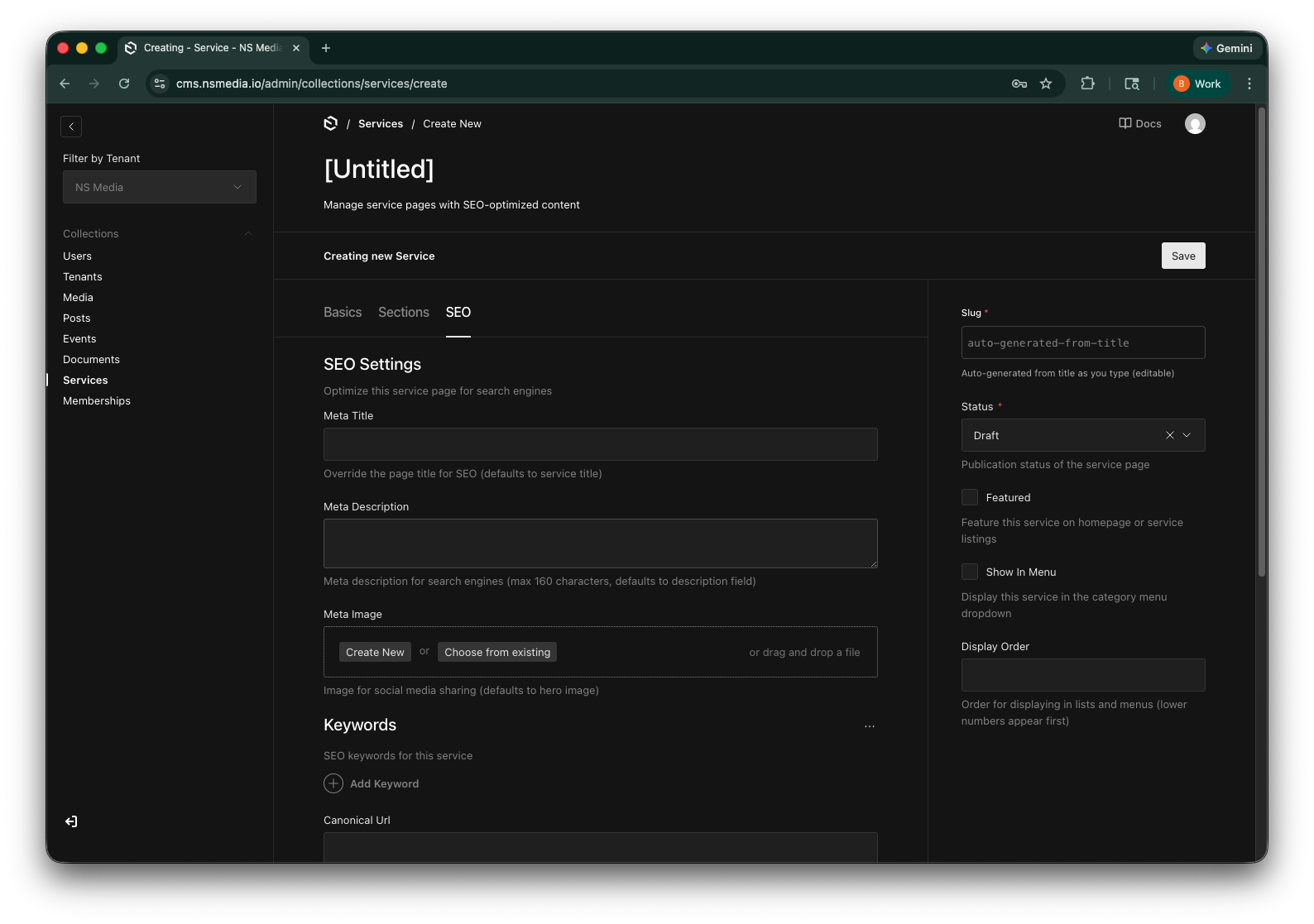 The sidebar — control visibility, menu placement, and display order
Use Display Order to control where services appear in lists. Set your most important services to lower numbers (e.g., 1, 2, 3) so they appear first. Services without a display order appear last.
Creating Your First Service Page
- Go to Services
Click "Services" in the left sidebar.
- Click "Create New"
Opens a blank service page form.
- Fill in the basics
On the Basics tab, enter the service title, category, and a short description. Upload a hero image and add 1-2 CTA buttons.
- Build the content sections
Switch to the Sections tab. Fill in the Overview (required), then add Symptoms, Process steps, Benefits, and FAQs as needed. You don't need to fill every section — just the ones relevant to your service.
- Optimize for SEO (optional)
Switch to the SEO tab. Add a meta title, description, and relevant keywords. Fill in the Schema.org fields if you want rich search results.
- Configure sidebar settings
Set the status to "Published", check "Show in Menu" if you want it in the navigation, and set a display order.
- Save
Click Save. The service page will go live after the next website rebuild.
Frequently Asked Questions
Do I need to fill in every section on the Sections tab?
No. Only the Overview content is required. Fill in the other sections (Symptoms, Process, Benefits, FAQs) when they make sense for your service. Empty sections are simply not displayed on the website.
What's the difference between Featured and Show in Menu?
Featured promotes the service on the homepage or top of listings. Show in Menu adds it to the website's navigation menu dropdown. You can use either, both, or neither.
How do the Hero CTAs work?
You can add up to 2 buttons. For a link, use a URL like /contact. For a phone button, use tel:5551234567. The website styles the first button as primary and the second as secondary.
What is Schema.org structured data?
It's a way to tell search engines exactly what your page is about. When filled in correctly, Google can show enhanced results — like service type, price range, and service areas — directly in search results.
Can I link to related services?
Yes. In the Sections tab, use the Related Services field to link up to 4 other service pages. They appear as cards at the bottom of the page.