Events
Create and manage upcoming events with dates, venues, registration links, and full event details.
Overview
The Events collection lets you publish events to your website. Each event has a start date, optional end date, venue information with Google Maps integration, organizer details, and a rich text description. Events follow a lifecycle from Draft to Published to Completed or Cancelled.
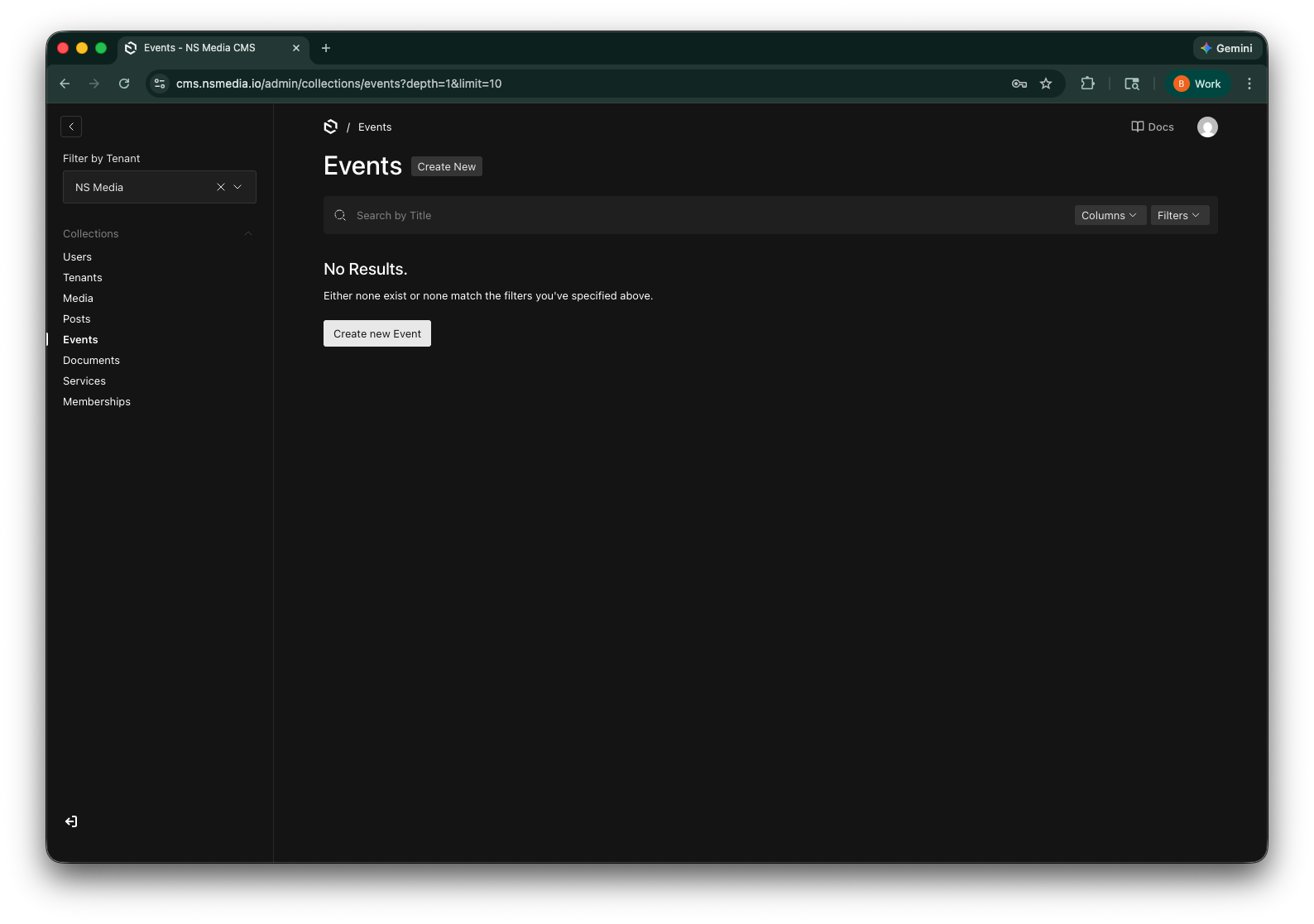 The Events list view — see all events with their date, location, and status
Content Tab
The Content tab is where you describe the event. Write a compelling title, a short excerpt for listings, and the full event description.
| Field | Required | Description | Example |
|---|---|---|---|
| Title | Yes | The name of the event. Displayed as the main heading on the website. | Annual Spring Festival |
| Excerpt | No | Short preview text (max 200 characters) shown in event listings before the "read more" link. | Join us for live music, food trucks, and family fun in the town square. |
| Description | Yes | Full event details using the rich text editor. Include agenda, what to bring, parking info, etc. | (rich text editor) |
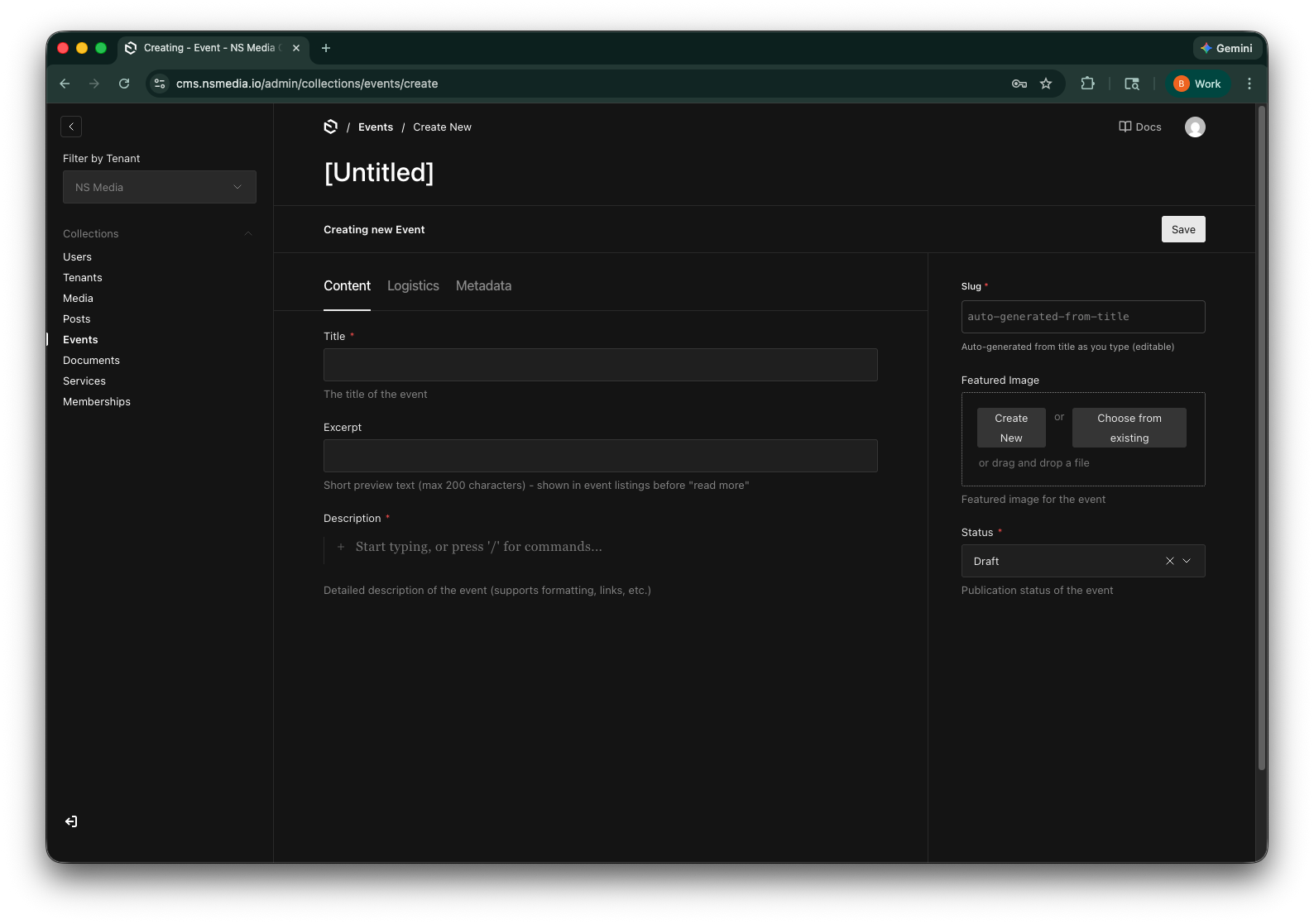 The Content tab — title, excerpt preview text, and full event description
Logistics Tab
The Logistics tab covers the practical details — when, where, and how to attend.
Dates
| Field | Required | Description | Example |
|---|---|---|---|
| Event Date | Yes | The start date and time. Uses a date-and-time picker. | 2026-06-15 10:00 AM |
| End Date | No | When the event ends. Must be after the start date — the system will show an error if it's not. | 2026-06-15 4:00 PM |
The end date must be after the start date. If you enter an end date that's before or equal to the start date, you'll see a validation error when saving.
Location
| Field | Required | Description | Example |
|---|---|---|---|
| Venue | Yes | Name of the venue or location where the event takes place. | Centerburg Town Square |
| Address | No | Street address. Uses Google Maps autocomplete — start typing and select a suggestion to auto-fill city, state, zip, and coordinates. | 100 Main St, Centerburg, OH |
| City / State / Zip | No | Auto-filled from the address autocomplete, or can be entered manually. | Centerburg / OH / 43011 |
| Latitude / Longitude | No | Map coordinates. Auto-filled from the address. Used to display a map pin on the website. | 40.2593 / -82.6935 |
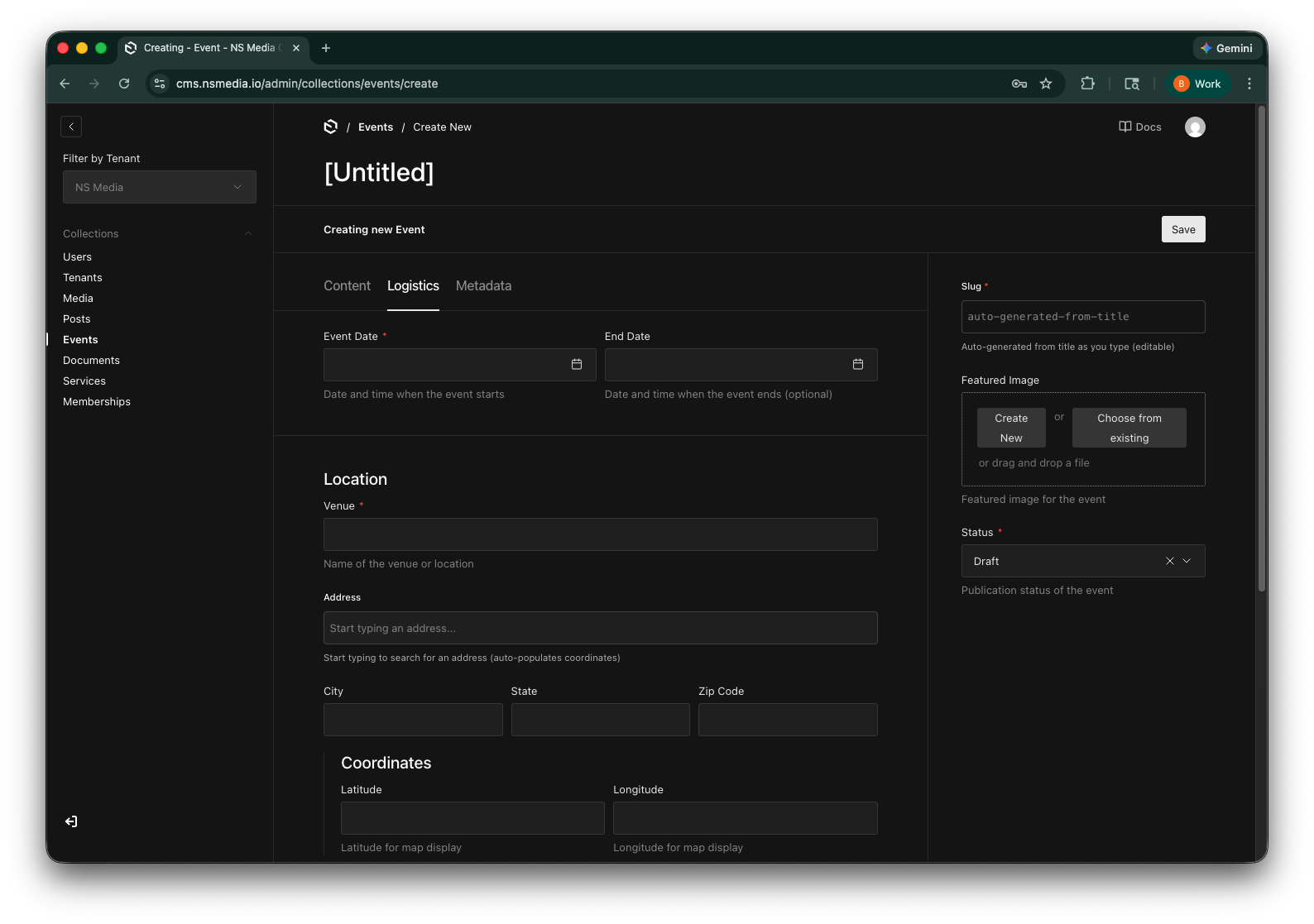 The Logistics tab — venue name and Google Maps address autocomplete
The address field works the same as in Memberships. Start typing and select a suggestion — city, state, zip, and map coordinates auto-fill. See the Getting Started guide for more details.
Contact & Registration
| Field | Required | Description | Example |
|---|---|---|---|
| Organizer | No | Name of the person or group organizing the event. | Centerburg Chamber of Commerce |
| Contact Email | No | Email address for event inquiries. | events@centerburgchamber.org |
| Contact Phone | No | Phone number for event inquiries. | (740) 625-9876 |
| Registration URL | No | Link to an external registration page or ticket site. | https://eventbrite.com/spring-festival |
| Capacity | No | Maximum number of attendees. Leave blank if there's no limit. | 500 |
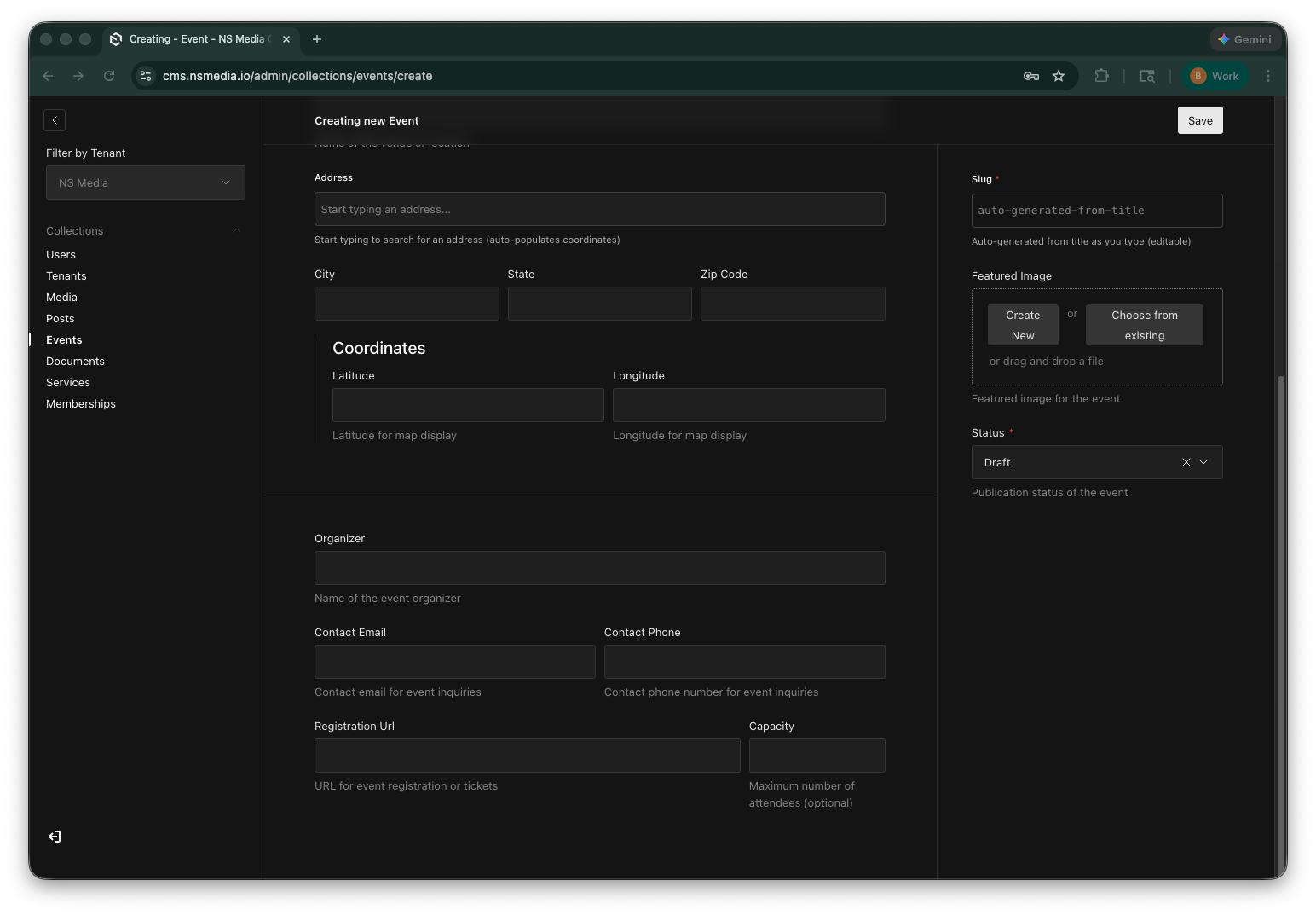 Contact and registration settings — organizer info, registration link, and capacity
Metadata Tab
The Metadata tab lets you categorize the event and add tags for filtering.
| Field | Required | Description | Example |
|---|---|---|---|
| Category | No | Type of event. Options: Conference, Workshop, Seminar, Webinar, Social, Meeting, or Other. | Social |
| Tags | No | Tags for categorizing and filtering events. Click "Add Tag" to add entries. | Festival, Community, Family |
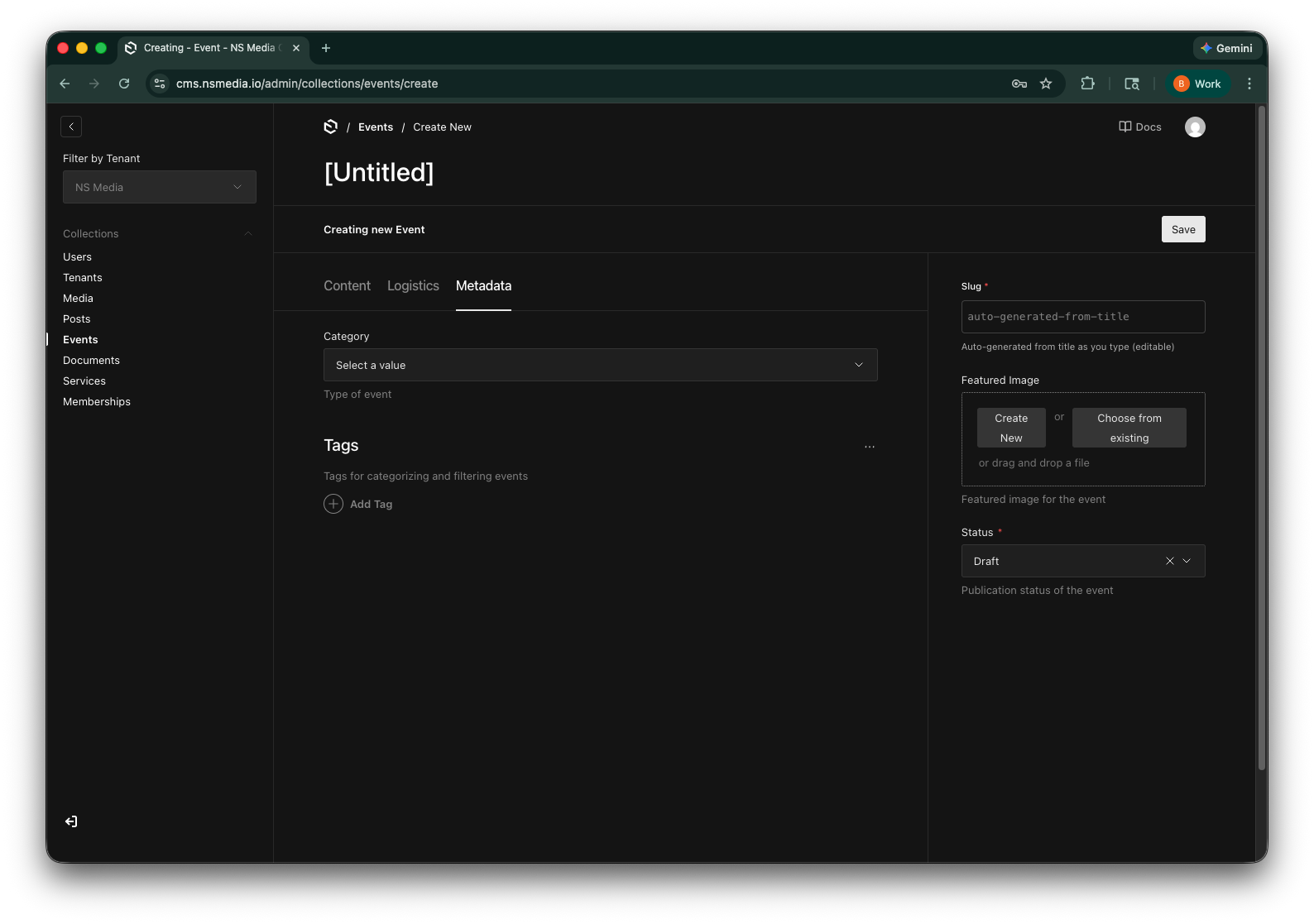 The Metadata tab — event category and tags for filtering
Sidebar Fields
These fields appear in the right sidebar of the editor.
| Field | Required | Description | Example |
|---|---|---|---|
| Slug | Yes | URL-friendly identifier. Auto-generated from the title. Used in the website URL (e.g., /events/annual-spring-festival). | annual-spring-festival |
| Featured Image | No | The main image for the event. Shown on event cards and at the top of the event detail page. | (upload: spring-festival-banner.jpg) |
| Status | Yes | Controls the event lifecycle: Draft (hidden), Published (live), Cancelled (shown with cancelled badge), Completed (shown as past event). | Published |
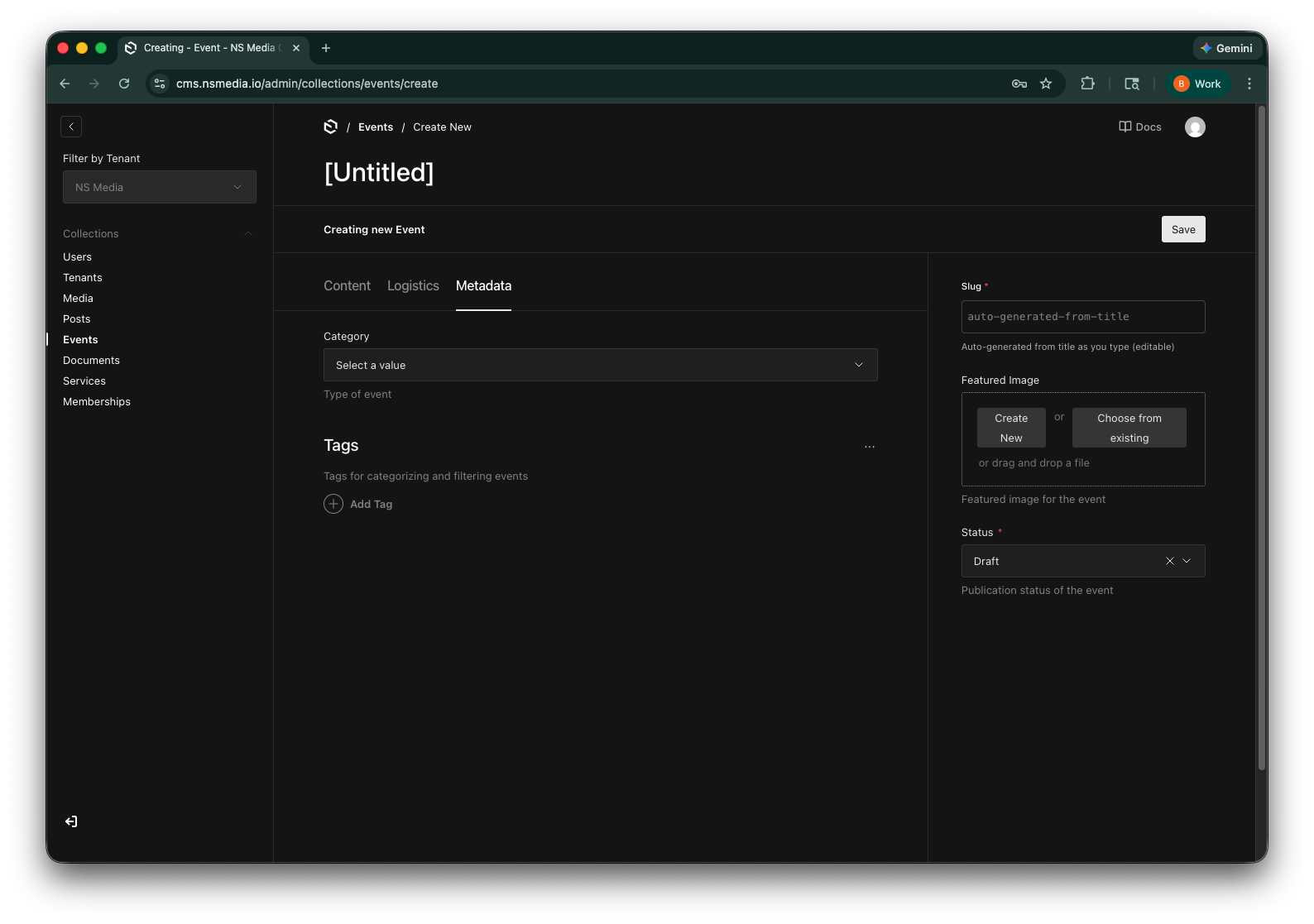 The sidebar — slug, featured image, and event lifecycle status
Events have four statuses: Draft (not visible), Published (live on website), Cancelled (visible with a cancelled badge), and Completed (shown as a past event). After an event passes, change the status to Completed to keep it in the archive.
Creating Your First Event
- Go to Events
Click "Events" in the left sidebar.
- Click "Create New"
Opens a blank event form.
- Write the event details
On the Content tab, enter the event title, a short excerpt, and write the full description in the rich text editor.
- Set the logistics
Switch to the Logistics tab. Set the start date and optional end date. Enter the venue name and use the address autocomplete for the location. Add organizer info and a registration link if applicable.
- Categorize the event
Switch to the Metadata tab. Choose a category (Workshop, Social, Meeting, etc.) and add any relevant tags.
- Upload a featured image
In the sidebar, upload an image that represents the event.
- Publish and save
Change the status to "Published" in the sidebar and click Save. The event will appear on your website after the next rebuild.
Frequently Asked Questions
How do I mark an event as cancelled?
Open the event, change the Status to "Cancelled" in the sidebar, and Save. The event will still appear on the website but with a cancelled indicator so visitors know it's no longer happening.
What happens to past events?
Once the event date has passed, change the status to "Completed." This keeps the event visible as a past event for reference but signals to the website that it's no longer upcoming.
Can I create a recurring event?
There's no built-in recurring event feature. Create a separate event entry for each occurrence. You can speed this up by duplicating an existing event using the three-dot menu (…) and updating the dates.
Do I need to enter the latitude and longitude manually?
No. These fields are automatically populated when you select an address from the Google Maps autocomplete. They're used to show a map pin on the event detail page.
What if my event is online (no physical venue)?
Enter the venue name as something like "Online / Virtual" or "Zoom Webinar." Skip the address fields and put the meeting link in the Registration URL field.