Memberships
Manage member business listings displayed on your organization's website. Each membership represents a business with its details, contact info, images, and social links.
Overview
The Memberships collection stores your organization's member directory. Each entry creates a card on your website showing the business name, image, tag, and a link to their detail page. Members can optionally be featured on the home page.
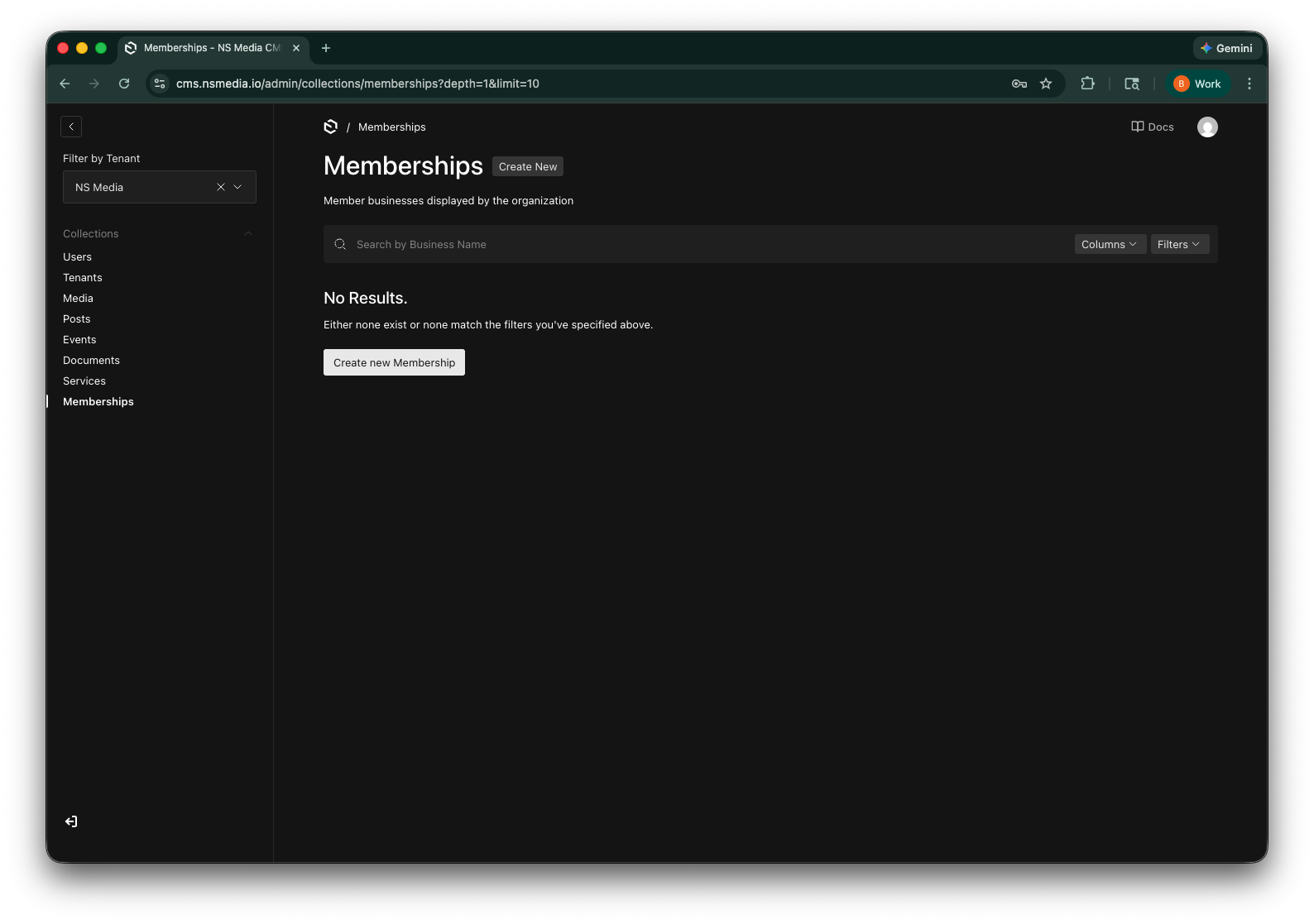 The Memberships list view — see all your members at a glance
Details Tab
The Details tab contains the core information about the member business. The business name is the only required field — everything else is optional but recommended.
| Field | Required | Description | Example |
|---|---|---|---|
| Business Name | Yes | The official name of the member business. Displayed as the card title on your website. | Centerburg Hardware & Supply |
| Tag | No | A short category label shown on the membership card. Useful for grouping or filtering. | Retail |
| Description | No | A rich-text description of the business. Supports bold, italic, links, and lists. Shown on the member detail page. | Family-owned hardware store serving Centerburg since 1985. |
| CTA Text | No | The call-to-action button text on the membership card. Links to this member's detail page using their slug. | Read more |
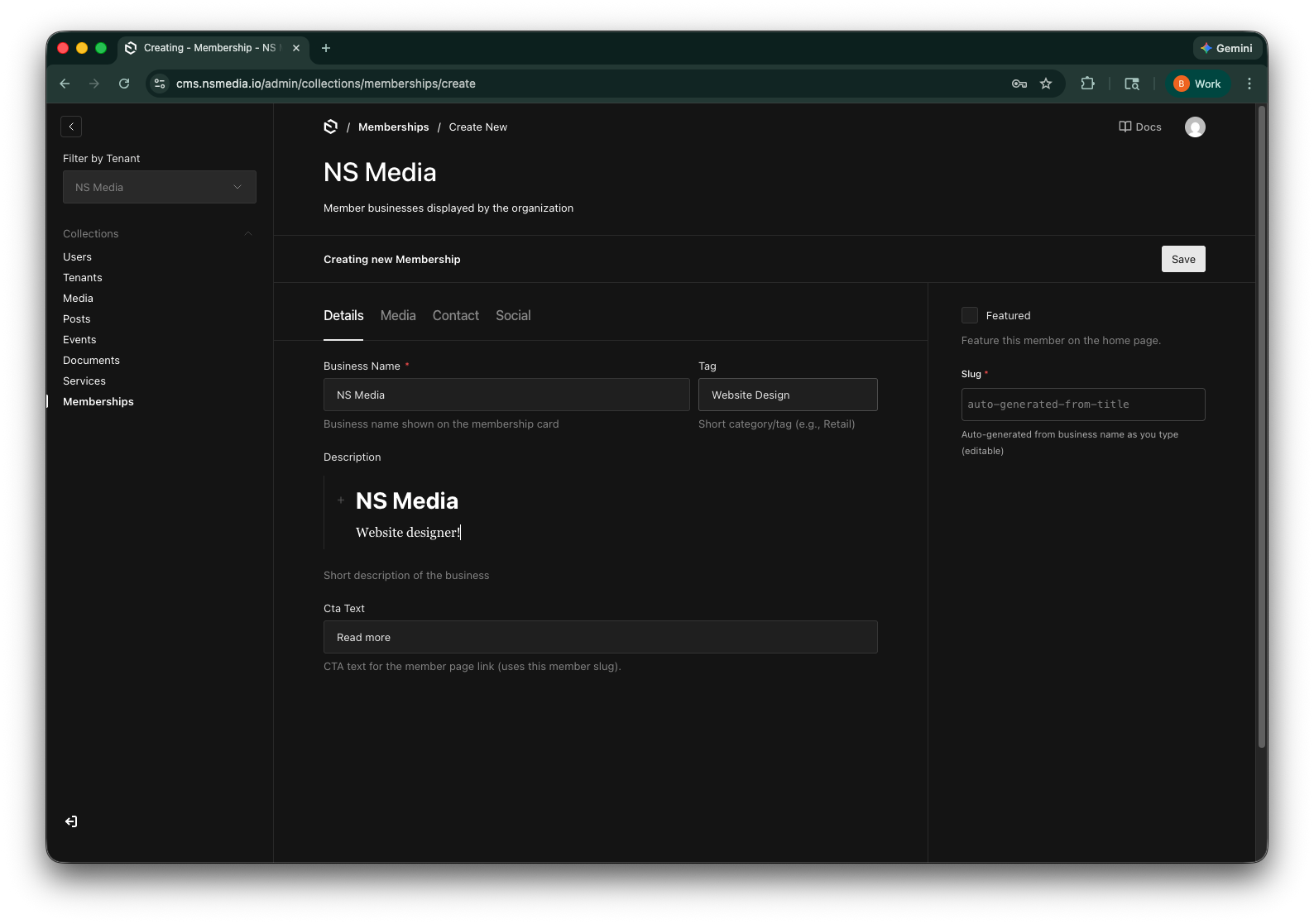 The Details tab — enter the business name, tag, description, and CTA text
The Description field uses a rich text editor. You can format text with bold, italic, links, and bullet lists. Keep descriptions concise — 2-3 sentences works well for the website display.
Media Tab
The Media tab controls the images associated with this member. The cover image appears on the membership card, while the cover photo is used as a banner on the detail page.
| Field | Required | Description | Example |
|---|---|---|---|
| Cover Image | No | The primary image or logo shown on the membership card. Upload a photo, headshot, or logo. | (upload: company-logo.png) |
| Image Display | No | Controls how the cover image is cropped. Use "Cover" for photos (crops to fill the card). Use "Contain" for logos (shows the full image without cropping). | Cover |
| Cover Photo | No | A wide banner image for the member detail page. Recommended size: 1600x900 (16:9 aspect ratio). | (upload: storefront-wide.jpg) |
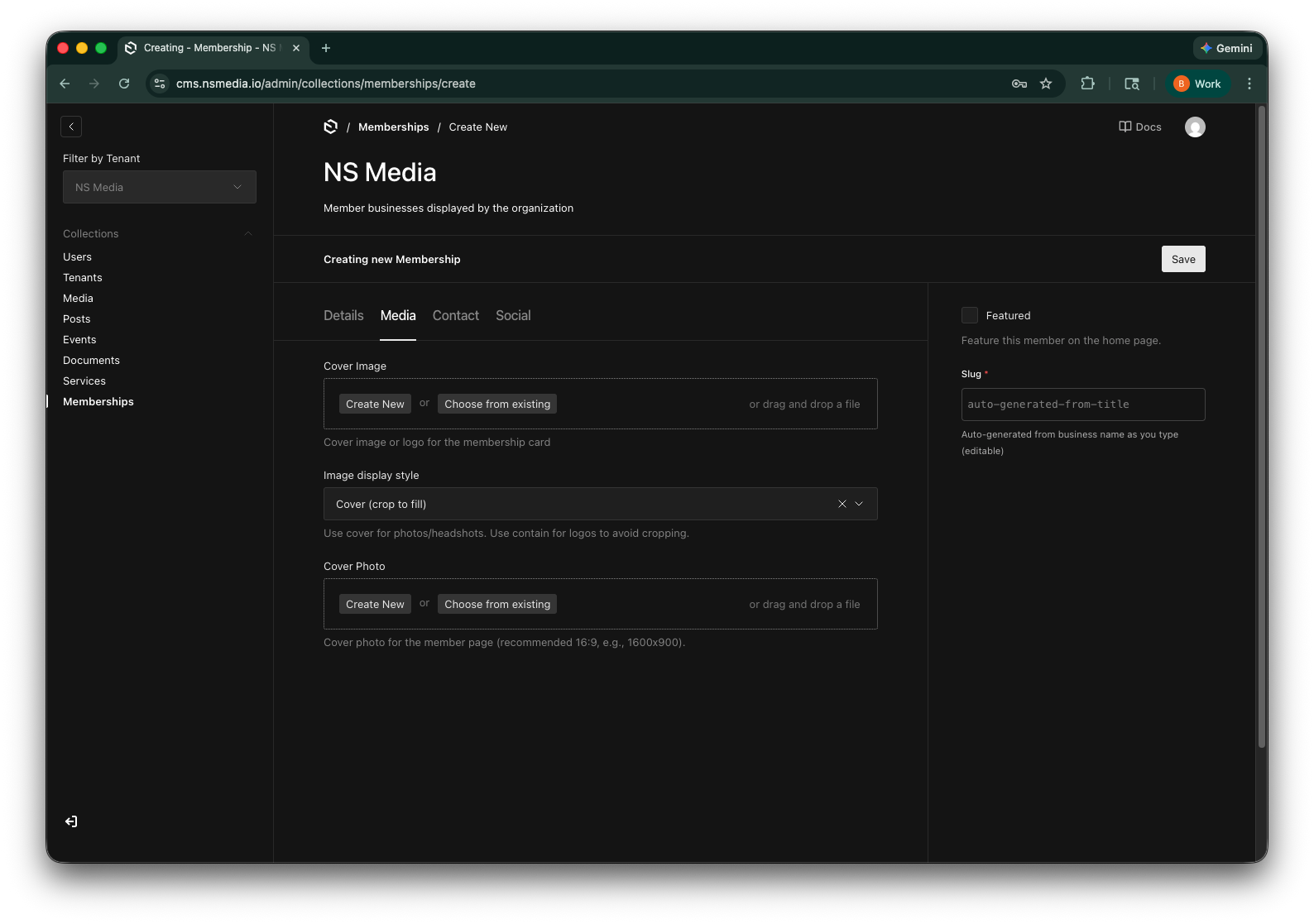 The Media tab — upload a card image/logo and an optional detail page banner
Cover vs Contain: Use "Cover" for photos and headshots — the image will be cropped to fill the card. Use "Contain" for logos — the full image will be shown with no cropping, which prevents logos from being cut off.
Contact Tab
The Contact tab stores the business's location and contact information. The address field uses Google Maps autocomplete to make entry fast and accurate.
| Field | Required | Description | Example |
|---|---|---|---|
| Address | No | Start typing to search via Google Maps autocomplete. Selecting a result auto-fills city, state, zip, and coordinates. | 123 Main St, Centerburg, OH |
| City | No | Auto-filled from the address autocomplete. Can also be entered manually. | Centerburg |
| State | No | Auto-filled from the address autocomplete. Can also be entered manually. | OH |
| Zip Code | No | Auto-filled from the address autocomplete. Can also be entered manually. | 43011 |
| Phone | No | Contact phone number for the business. | (740) 625-1234 |
| No | Contact email address for the business. | info@centerburghardware.com | |
| Website | No | The business website URL. Include the full URL with https://. | https://centerburghardware.com |
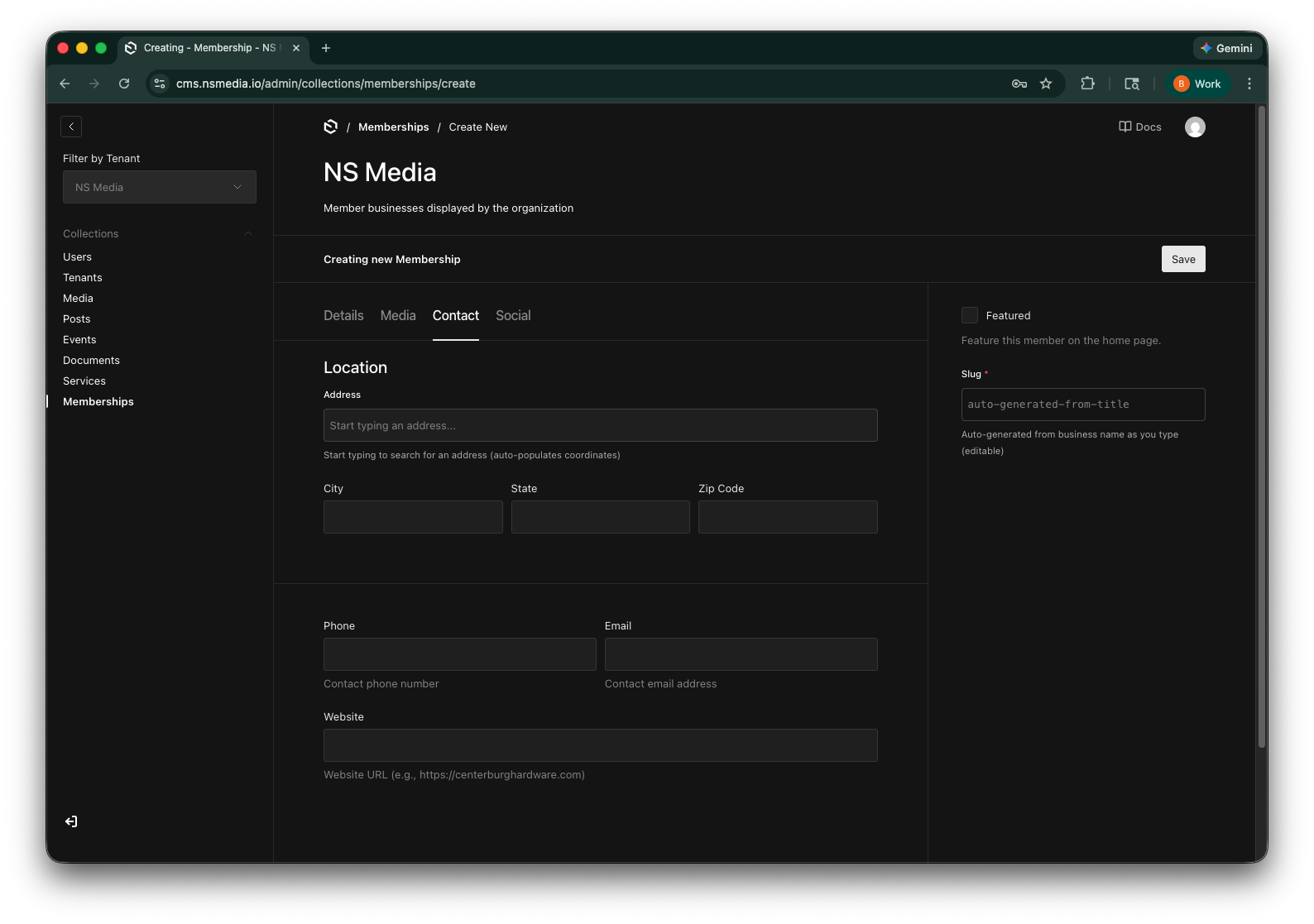 The Contact tab — address, phone, email, and website
Start typing in the Address field and you'll see suggestions from Google Maps. Select one and the city, state, and zip code will fill in automatically. The map coordinates are also saved (hidden from view) for use in maps on your website.
Social Tab
The Social tab lets you add social media links for the business. Click "Add Social Link" to add a new entry, then select the platform and paste the profile URL.
| Field | Required | Description | Example |
|---|---|---|---|
| Platform | Yes | Select the social media platform from the dropdown: Facebook, Instagram, TikTok, LinkedIn, YouTube, X (Twitter), or Pinterest. | |
| URL | Yes | The full URL to the business's profile on that platform. | https://facebook.com/centerburghardware |
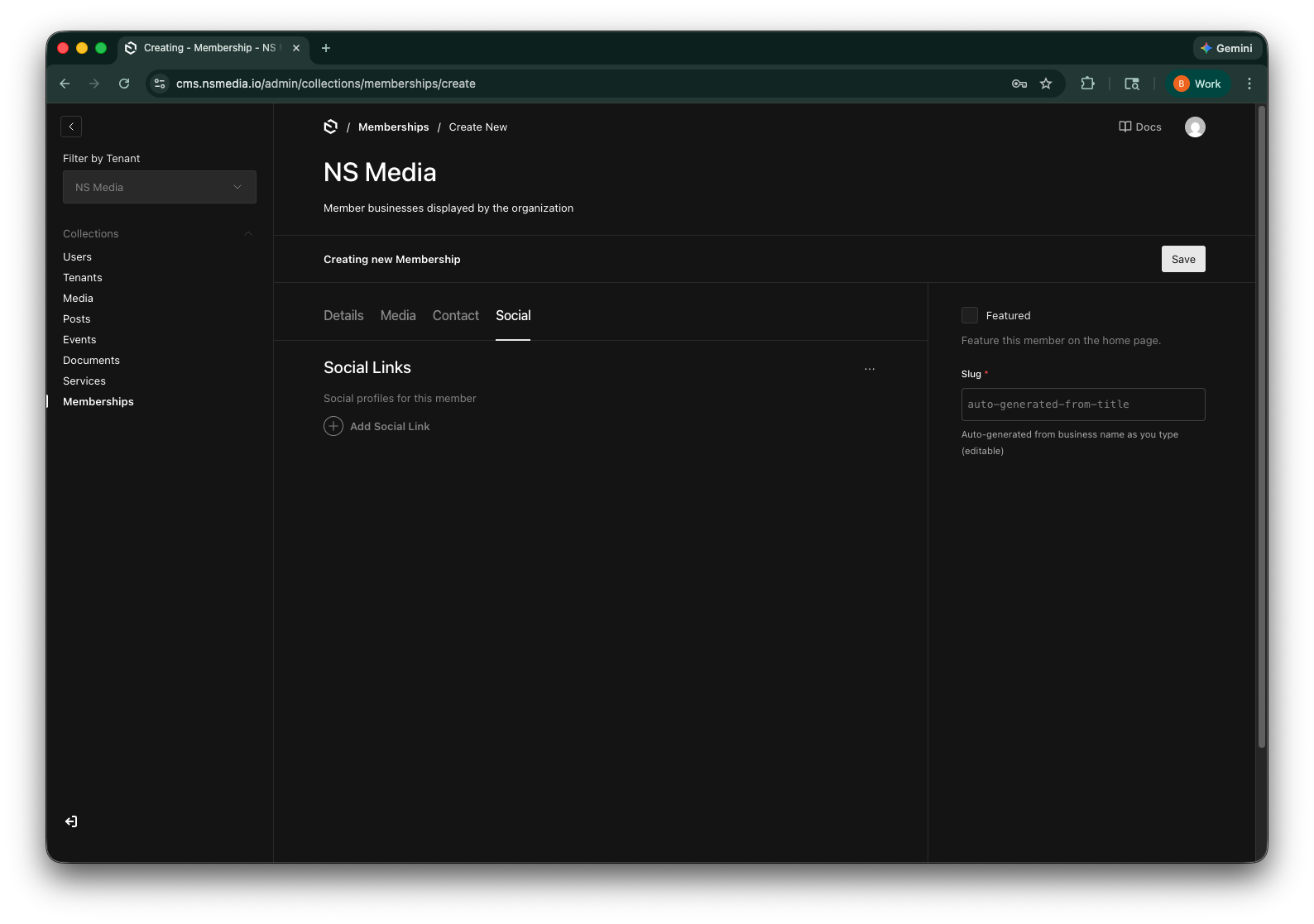 The Social tab — add social media profiles as platform/URL pairs
You can add as many social links as needed. To remove one, click the X icon on the social link row. The order you add them is the order they'll display on the website.
Sidebar Fields
These fields appear in the right sidebar of the editor, outside the main tabs.
| Field | Required | Description | Example |
|---|---|---|---|
| Slug | Yes | URL-friendly identifier for this member. Auto-generated from the business name as you type. Used in the website URL (e.g., /members/centerburg-hardware-supply). | centerburg-hardware-supply |
| Featured | No | Check this to feature the member on the home page. Only a few members should be featured at a time. | (checked) |
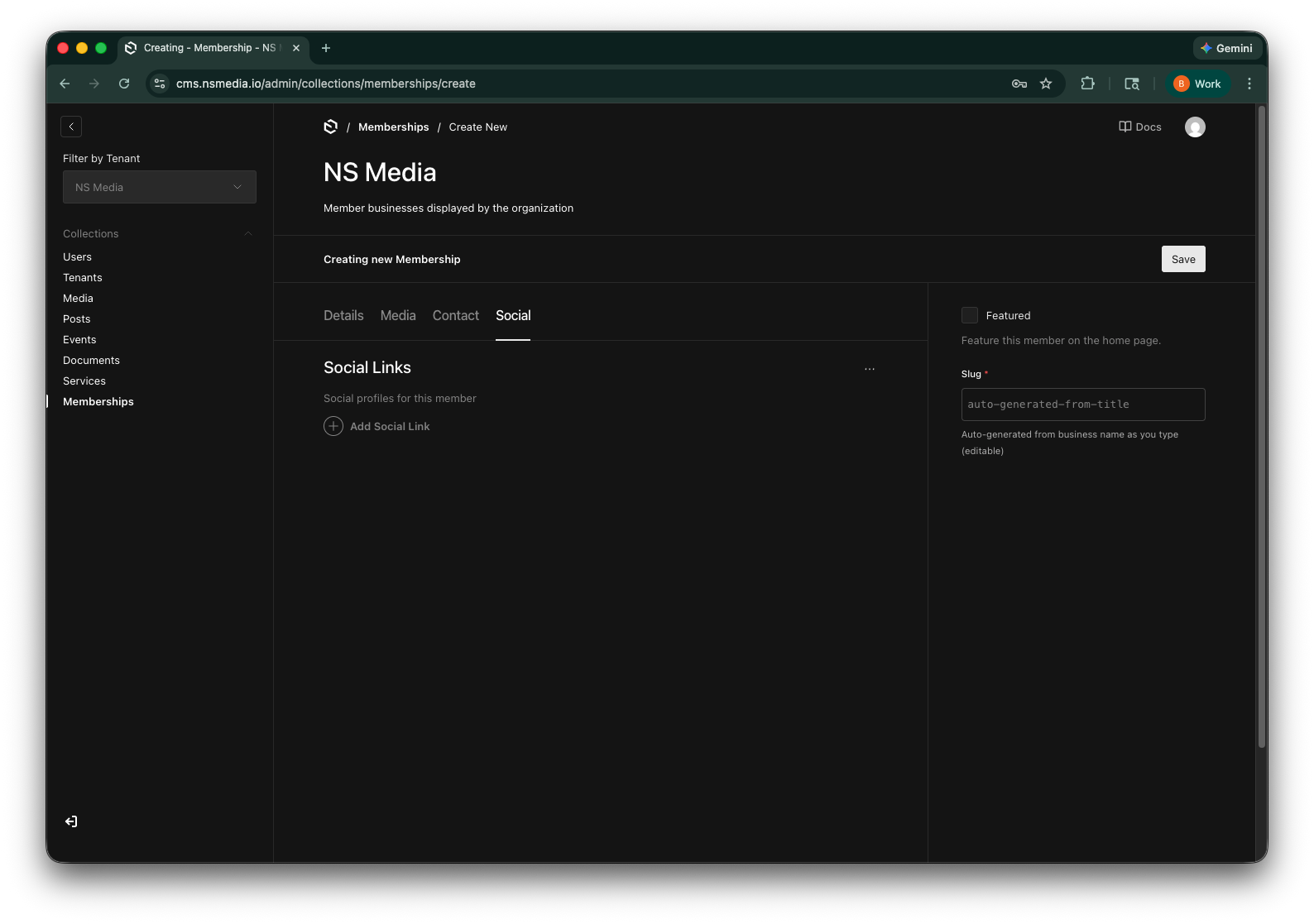 The sidebar — slug auto-generates from the business name, and Featured pins the member to the home page
Creating Your First Membership
- Go to Memberships
Click "Memberships" in the left sidebar of the admin panel.
- Click "Create New"
The button at the top-right opens a blank membership form.
- Enter the business name
On the Details tab, type the business name. You'll see the slug auto-generate in the sidebar. Optionally add a tag and description.
- Upload an image
Switch to the Media tab. Upload a logo or photo for the card, and choose "Cover" or "Contain" for the display style.
- Add contact info
Switch to the Contact tab. Start typing the address to use Google autocomplete, then add phone, email, and website.
- Add social links (optional)
Switch to the Social tab. Click "Add Social Link", pick the platform, and paste the profile URL.
- Save
Click Save in the top-right corner. The membership is now live and will appear on your website after the next rebuild (usually 1-2 minutes).
Frequently Asked Questions
Can I rearrange the order of members on the website?
The display order is controlled by your website's frontend template. By default, members are sorted by creation date. Contact your admin if you need a custom sort order.
What happens if I don't upload a cover image?
The membership card will display without an image — usually showing a placeholder or the business name only, depending on your website's design.
Can I have multiple memberships with the same business name?
The business name itself can be duplicated, but each membership must have a unique slug. If two businesses share a name, you'll need to manually edit one of the slugs to make it unique.
How do I delete a membership?
Open the membership, then click the three-dot menu (…) in the top-right corner and select "Delete". This action cannot be undone.
My address isn't showing up in the autocomplete suggestions.
Try typing more of the address, including the city or state. The autocomplete uses Google Maps data, so very new addresses or rural locations may take longer to appear. You can always type the city, state, and zip manually.
What image size should I use?
For the card image (cover image), a square or 4:3 aspect ratio works best — around 600x600 or 800x600. For the cover photo banner, use a wide 16:9 image around 1600x900 pixels.